
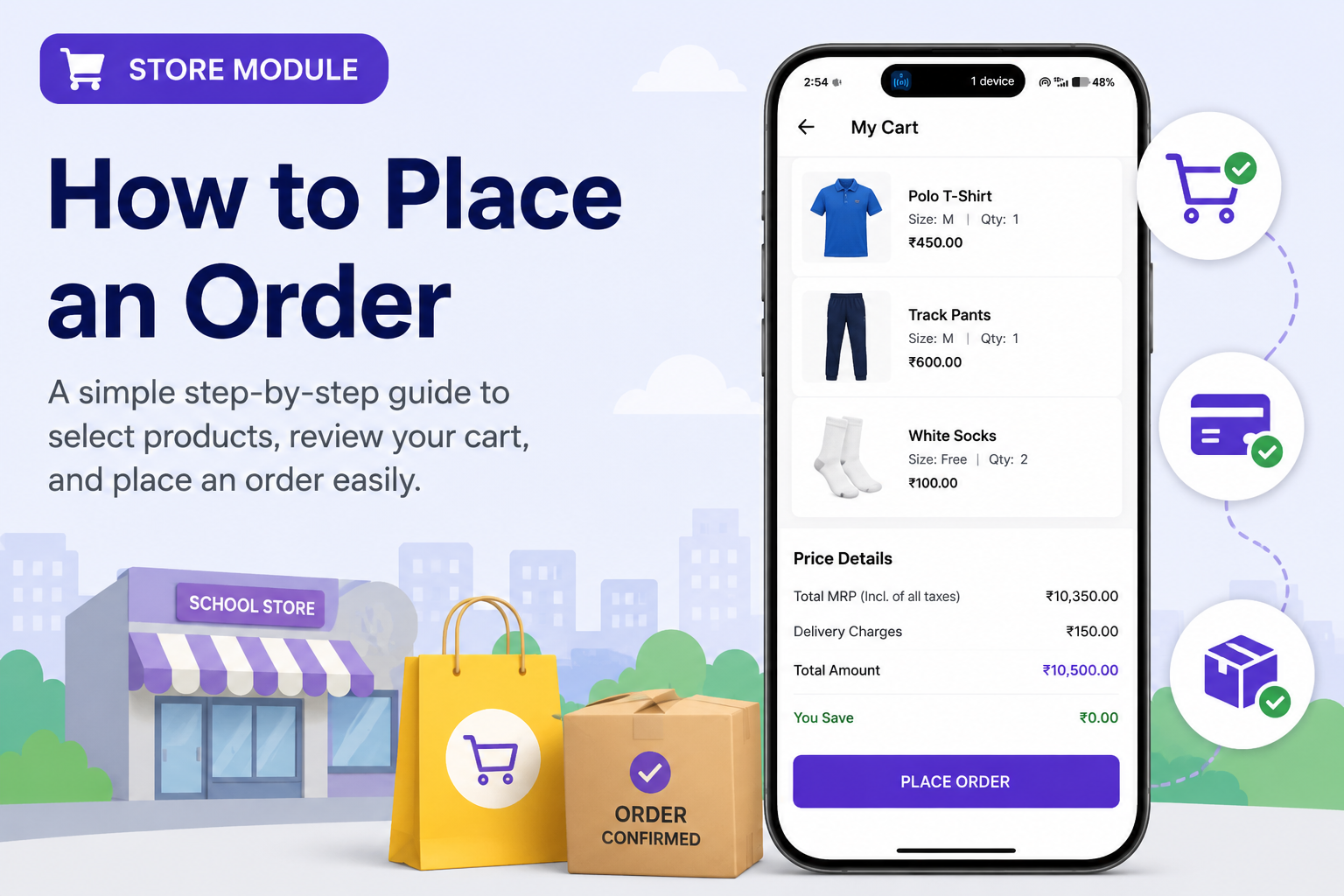
Overview
This guide explains how parents can open the Store Module, browse available products, and place an order for Uniforms, School Textbooks and Enrichment Programs in the app.
What You’ll Learn
- How to open the Store Module
- How to browse products under All Products
- How to order Uniforms
- How to order Enrichment Programs
- How to complete payment successfully
- Where to check your placed orders
- How to download invoice / receipt
Who Can Use This
Applicable Role:
- Parent
Prerequisites / Before you begin
- You must be logged in to the app as a Parent
- Your registered mobile number must be active for login
- You must have internet access to browse products and complete payment
Steps to Place an Order in the Store Module
Step 1: Open the app
Log in to the app as a Parent using your registered mobile number.
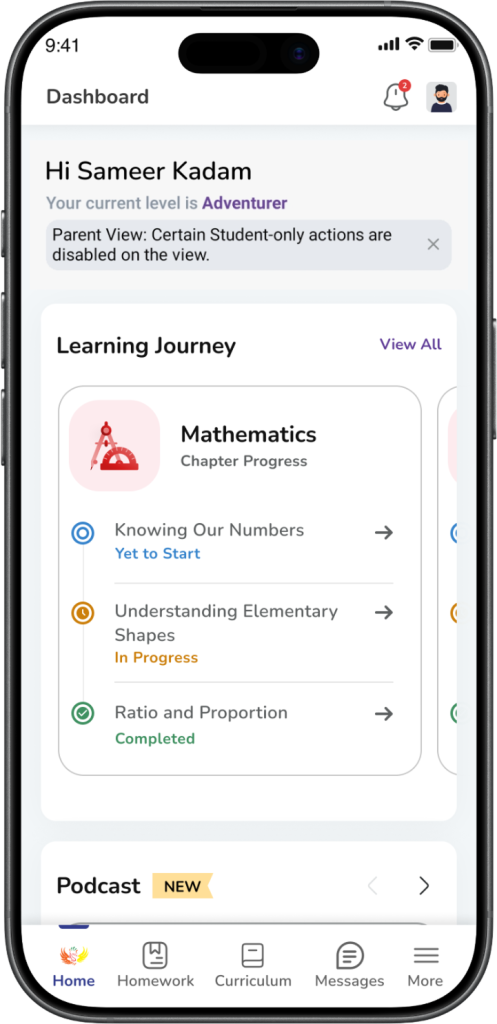
Expected Result: You are logged in successfully and land on the dashboard.
Step 2: Open More
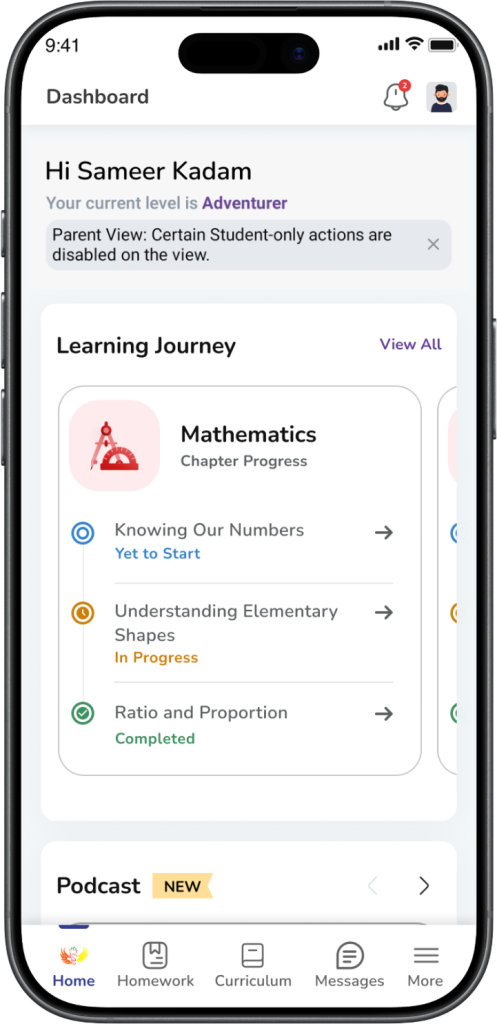
Tap More from the dashboard.
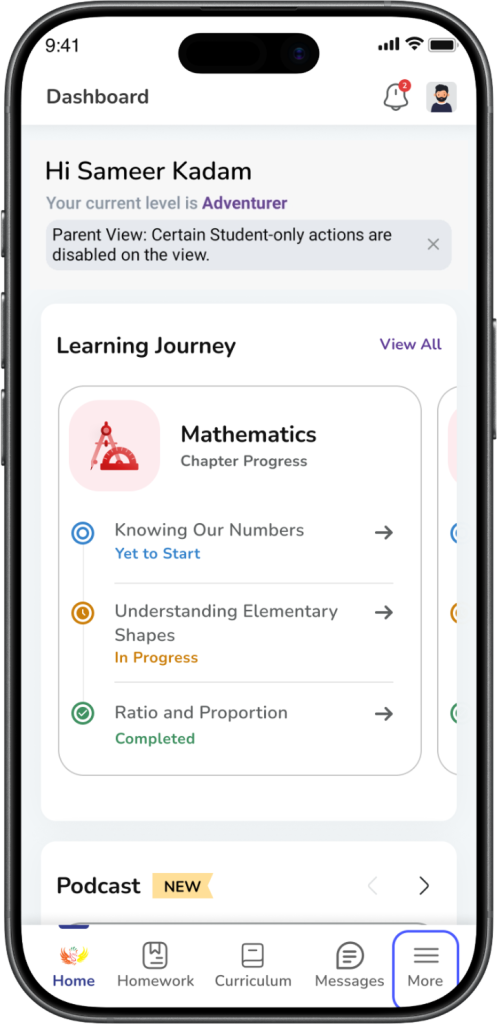
Expected Result: The More menu opens.
Step 3: Open Store
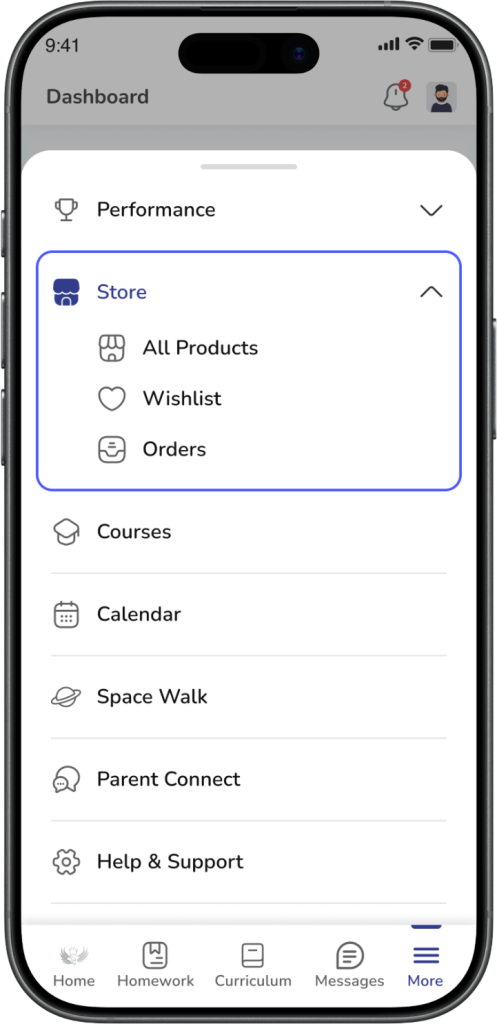
Tap Store.
Under Store, you will see the below options:
- All Products
- Wishlist
- Orders
Tap All Products.
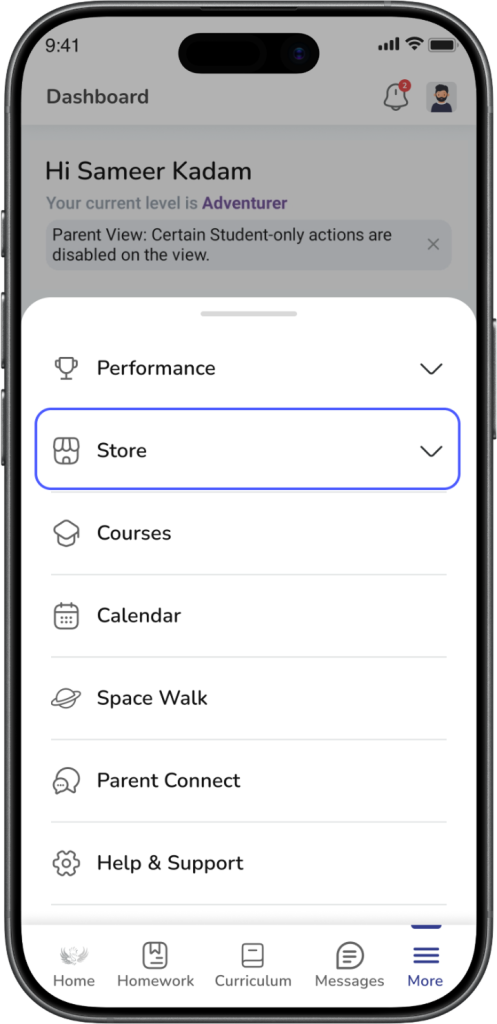
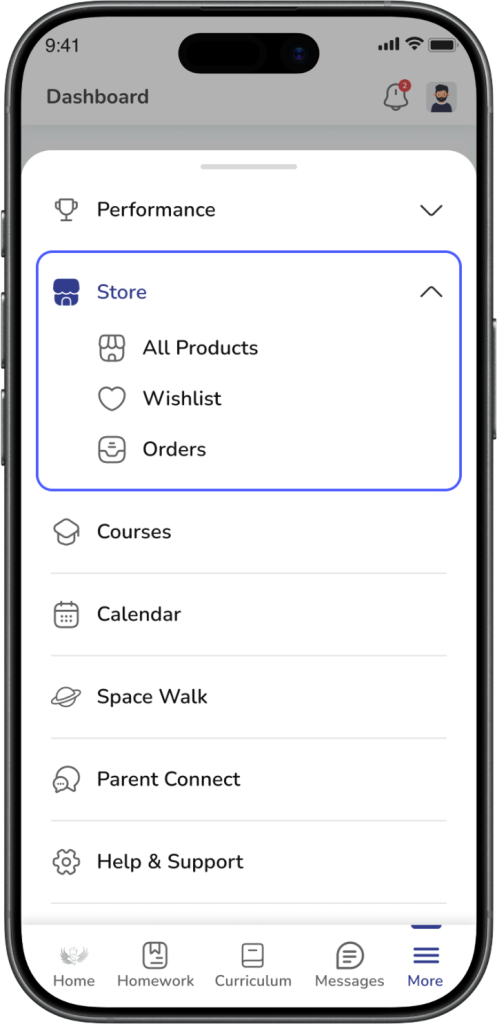
Expected Result:The Store Module opens and shows the available products.
Step 4: Browse products
On the All Products page, you can browse the available product categories such as Uniforms, School Textbooks, Centre of Excellence, and other available categories.
Tap the product category or product you want to buy.
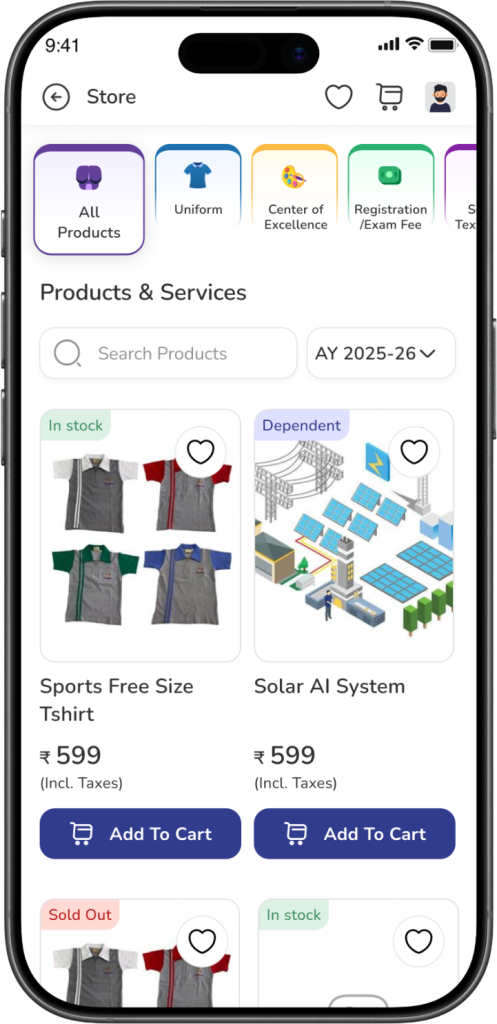
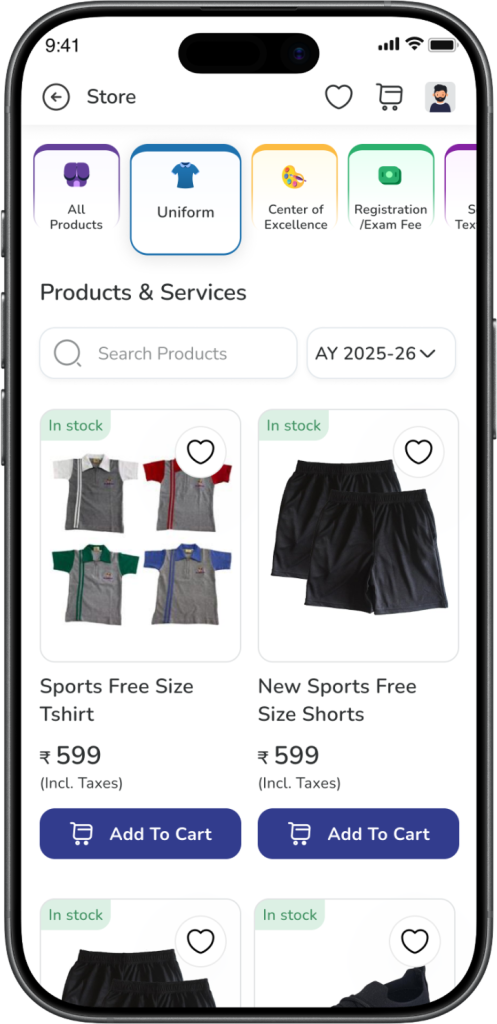
Expected Result: The selected product listing or product details page opens.
Steps to Order Uniforms
Step 1: Select a uniform product
Open the Uniforms section and tap the uniform product you want to buy.
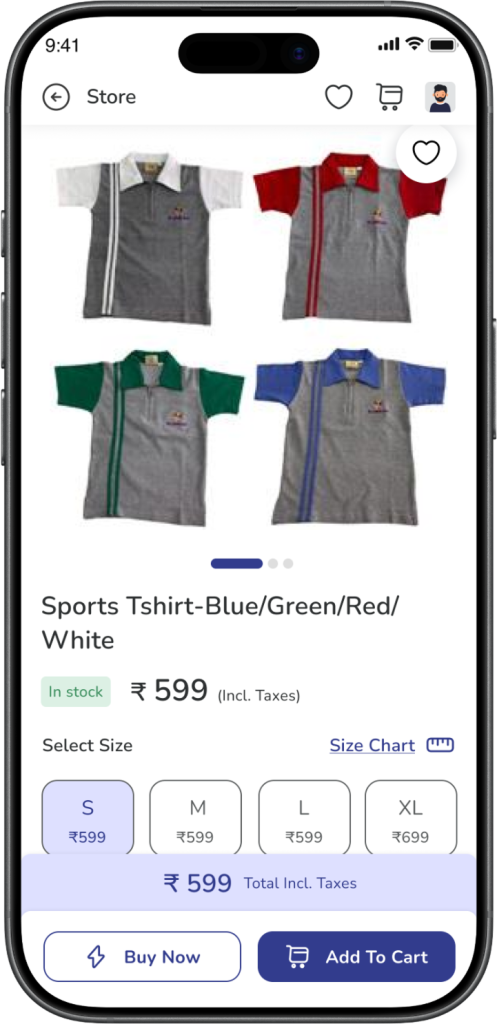
Expected Result: The product details page opens.
Step 2: Choose size and quantity
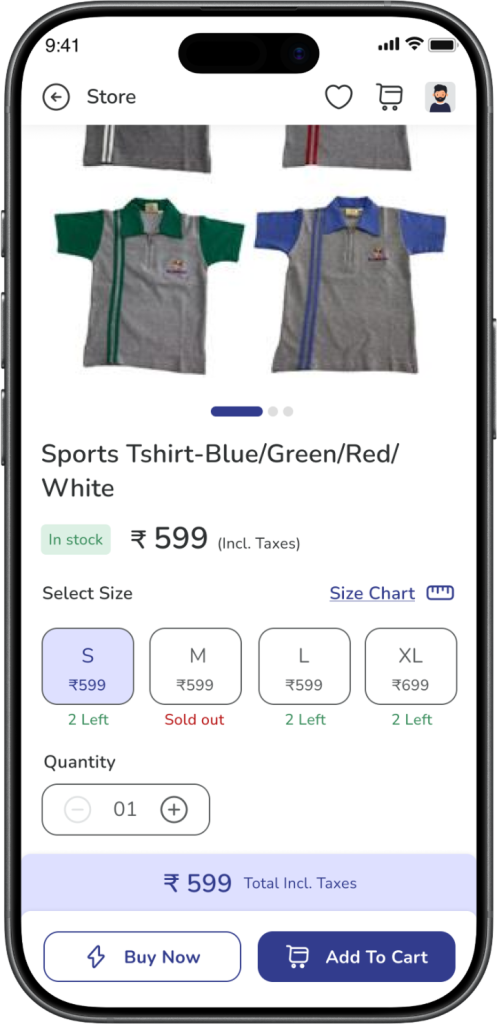
Select the required size and quantity for the uniform product (upto 10)
Tap Add to Cart.
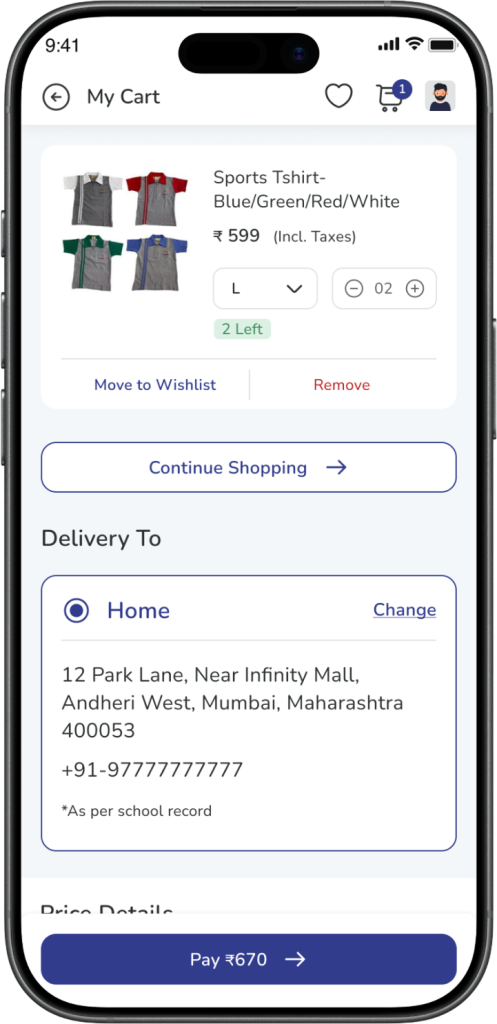
Expected Result: The selected uniform is added to your cart.
Step 3: Review your cart
Open the Cart and review the added uniform product.
From the cart, you can review or update:
- size
- quantity
- delivery address with contact number
- price details
If needed, you can also add a new address or change the selected address.
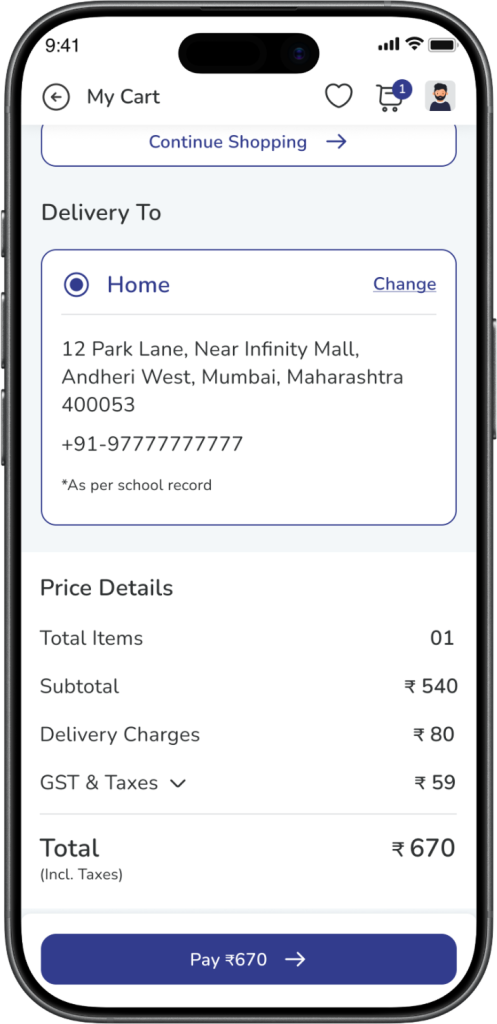
Expected Result: Your cart shows the correct product, quantity, address, and payable amount.
Step 4: Proceed to payment
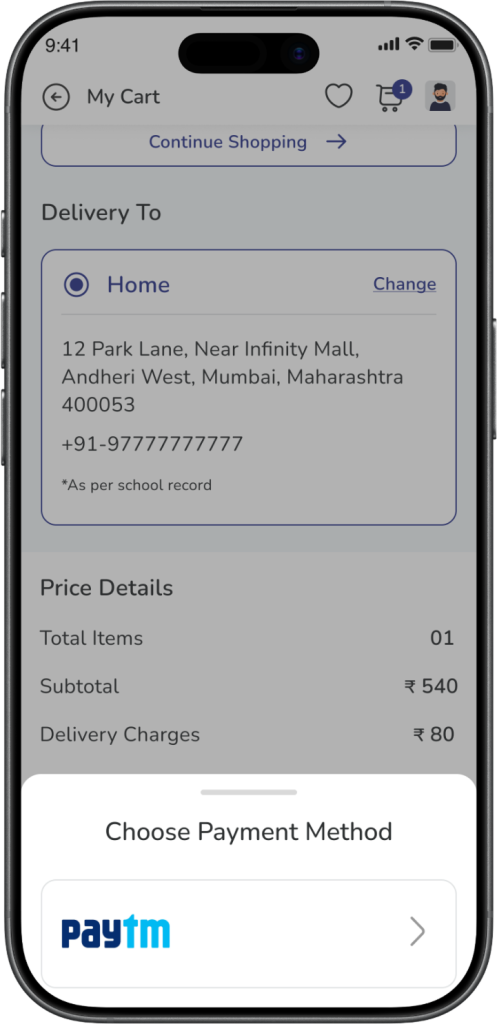
Tap Pay to continue.
You will be redirected to the payment gateway page.
Complete the payment.
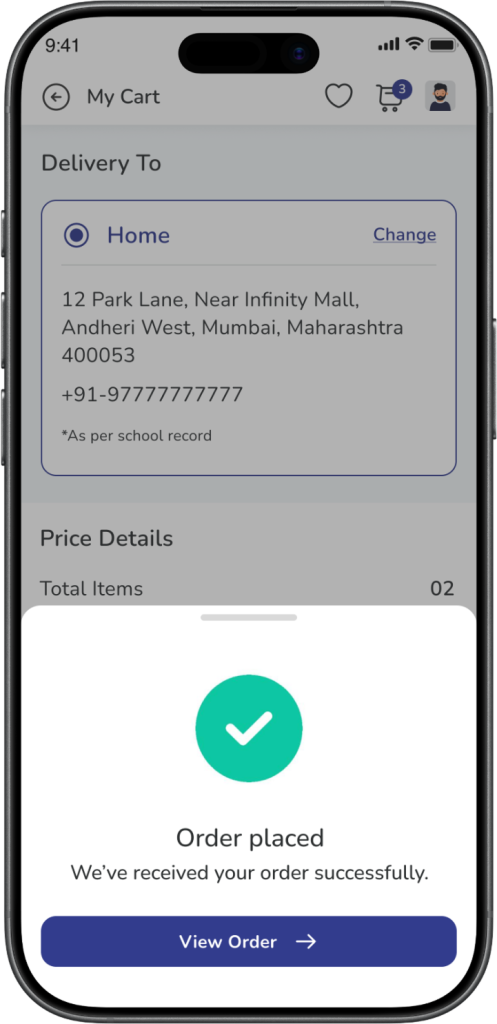
Expected Result: Once the payment is successful, the uniform order is placed successfully.
Step 5: Download invoice / receipt for Uniform orders
To download the invoice or receipt for your placed uniform order:
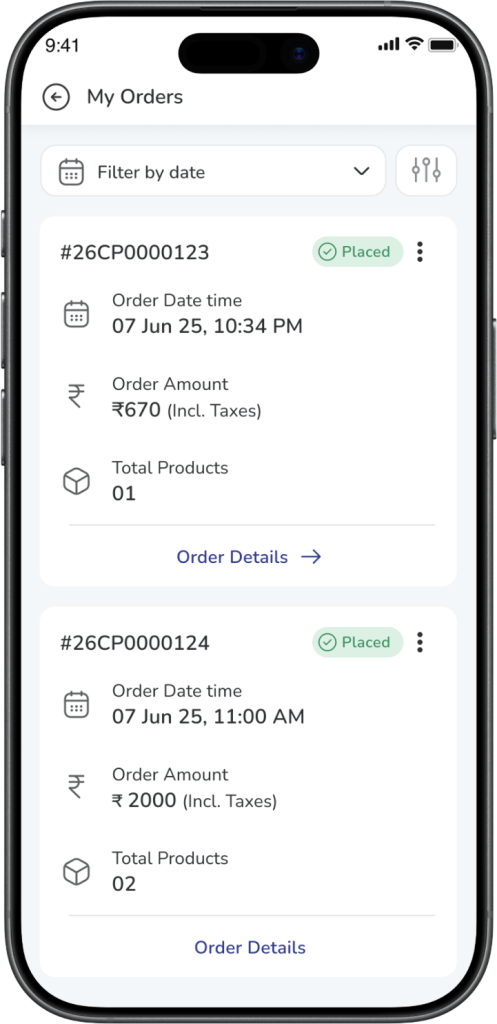
- Go to More → Store → Orders/Orders option in store landing screen
- Open the required order
- Tap the three dots on the order details page
- Download the available invoice / receipt
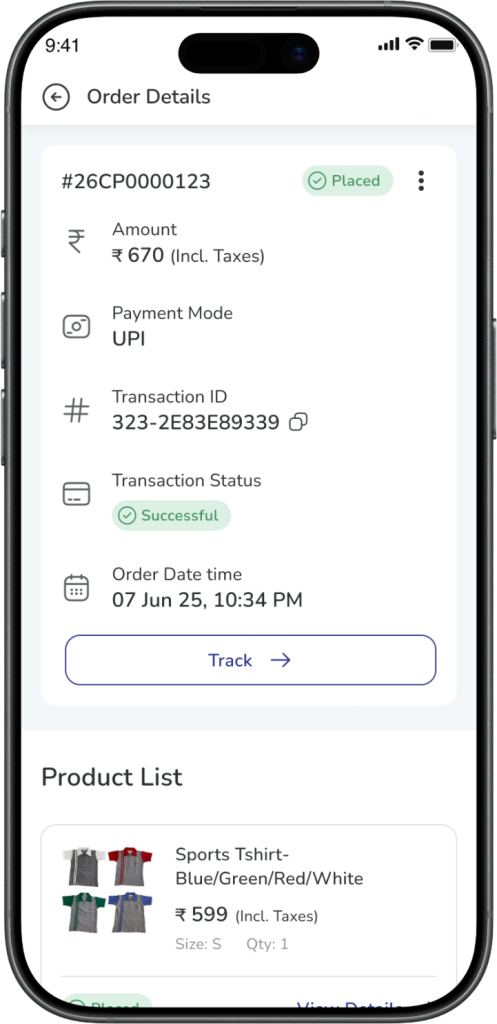
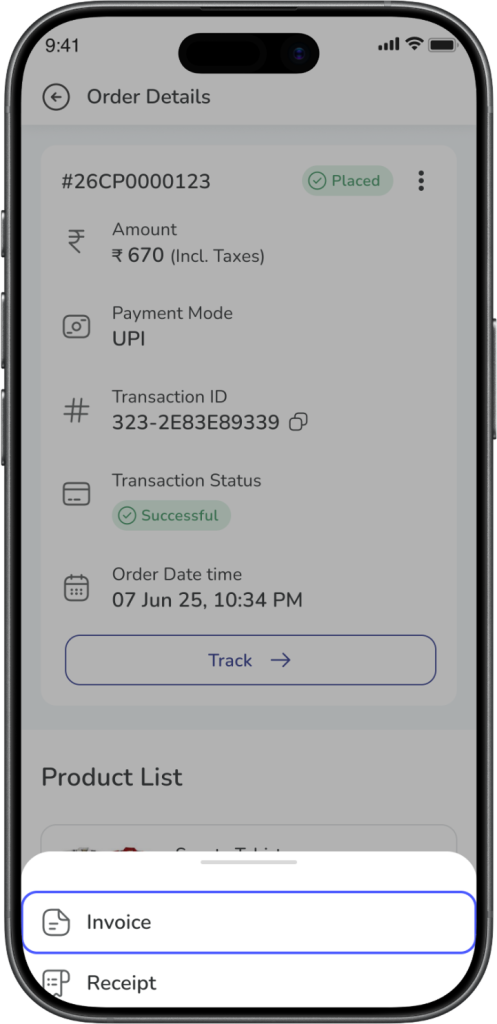
Expected Result: You can view or download the invoice / receipt for the selected uniform order.
Steps to Order Enrichment Programs
Step 1: Select the program you want to buy
From All Products, browse the available product categories such as School Textbooks, Centre of Excellence, and other available categories.
Tap the product or program you want to buy.
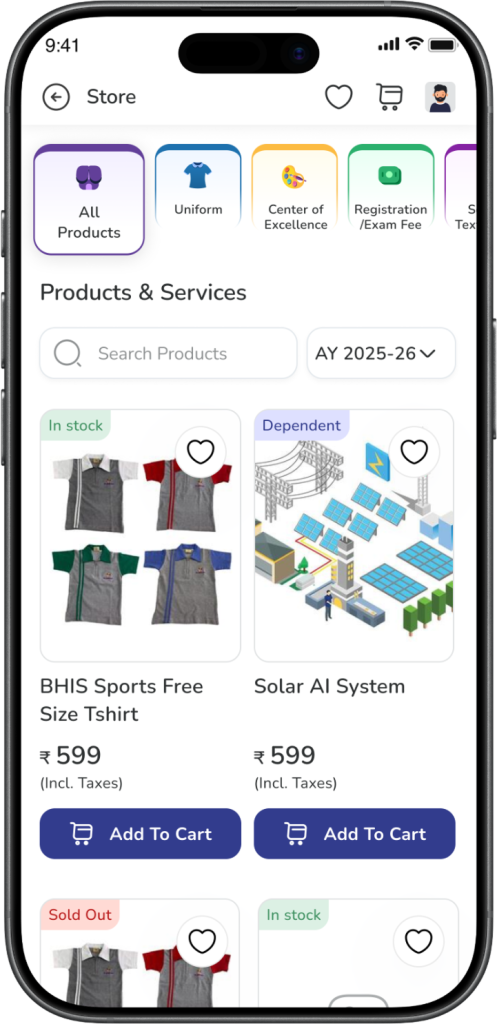
Expected Result: The selected product or program details page opens.
Step 2: Choose how to buy
You can place the order in either of these ways:
- Buy Now – to buy the selected product directly
- Add to Cart – to add the selected product to your cart and continue shopping
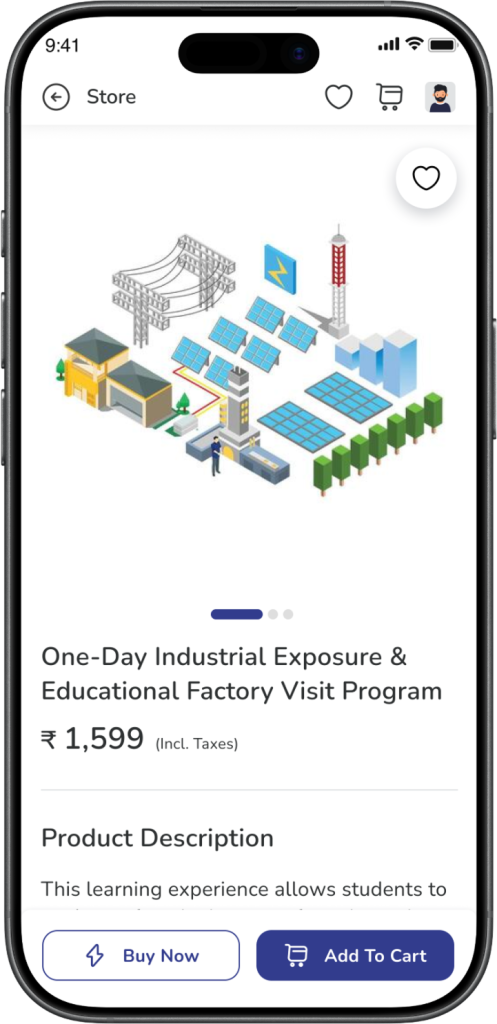
Expected Result: The selected product is either taken forward directly for purchase or added to the cart successfully.
Step 3: Review cart and pay
If the product is added to cart, open the Cart and review the selected items.
Check the price details and tap Pay.
You will be redirected to the payment gateway page.
Complete the payment.
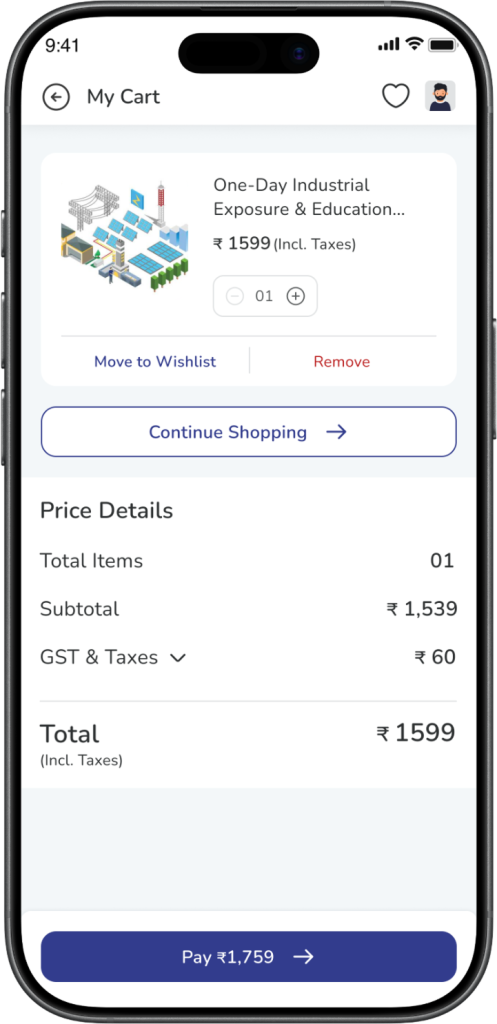
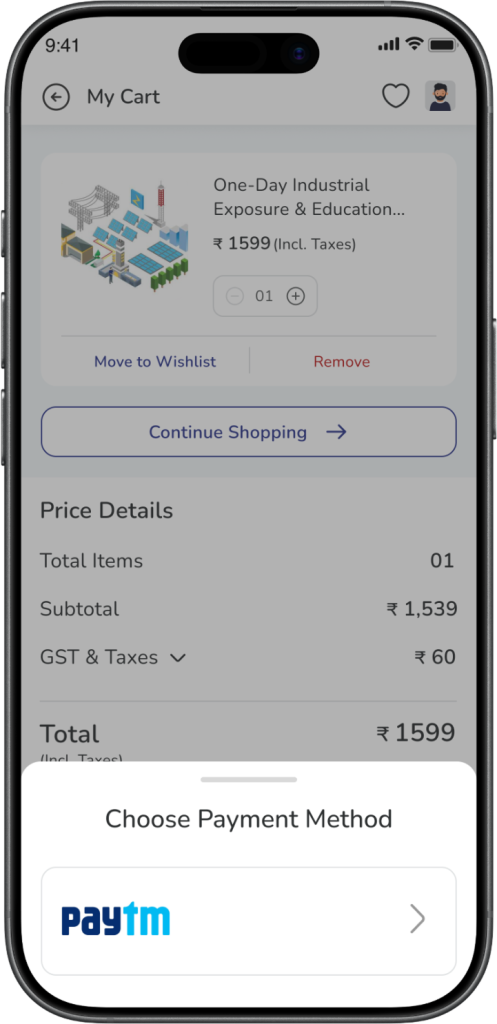
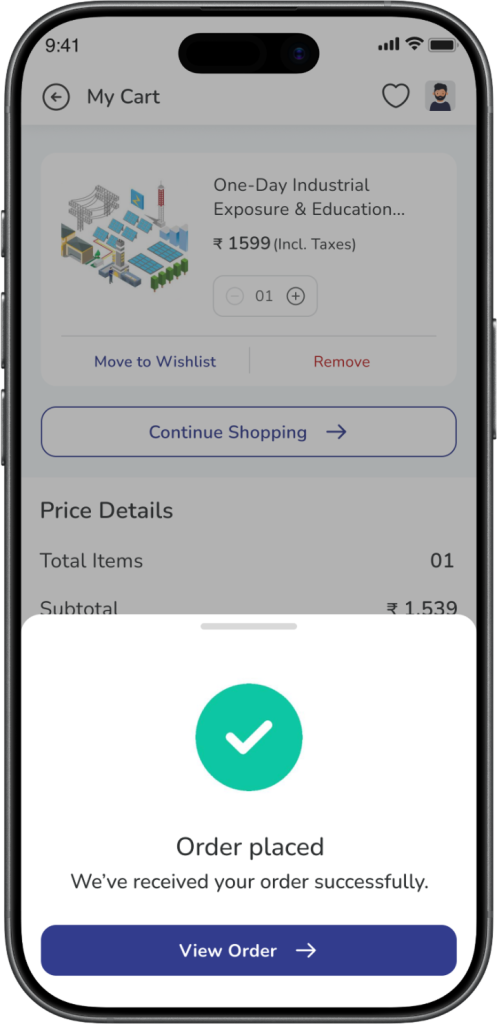
Expected Result: Once the payment is successful, the order is placed successfully.
Step 4: Download invoice for Enrichment Program orders
To download the invoice for your placed order:
- Go to More → Store → Orders/Orders option in store landing screen
- Open the required order
- Tap the three dots on the order details page
- Download the available invoice
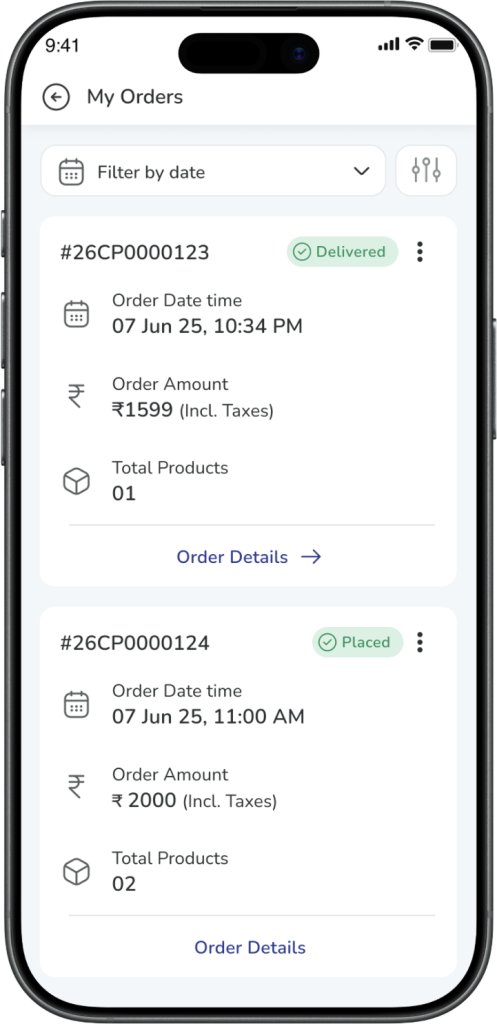
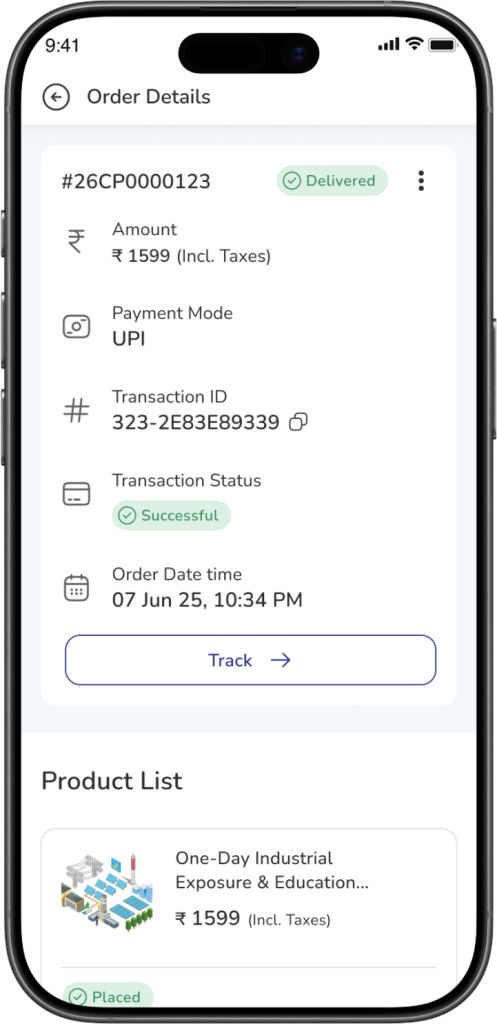
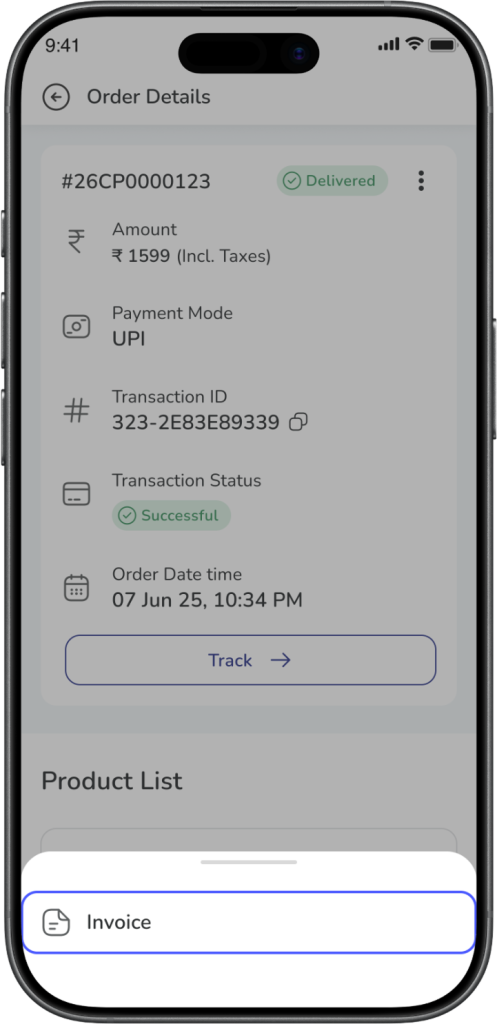
Expected Result: You can view or download the invoice for the selected order.
Step to View Your Orders
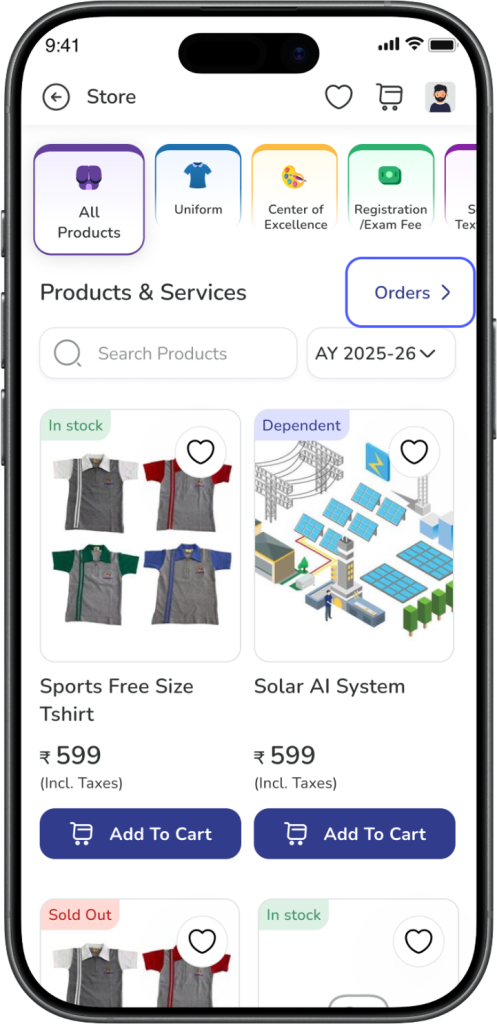
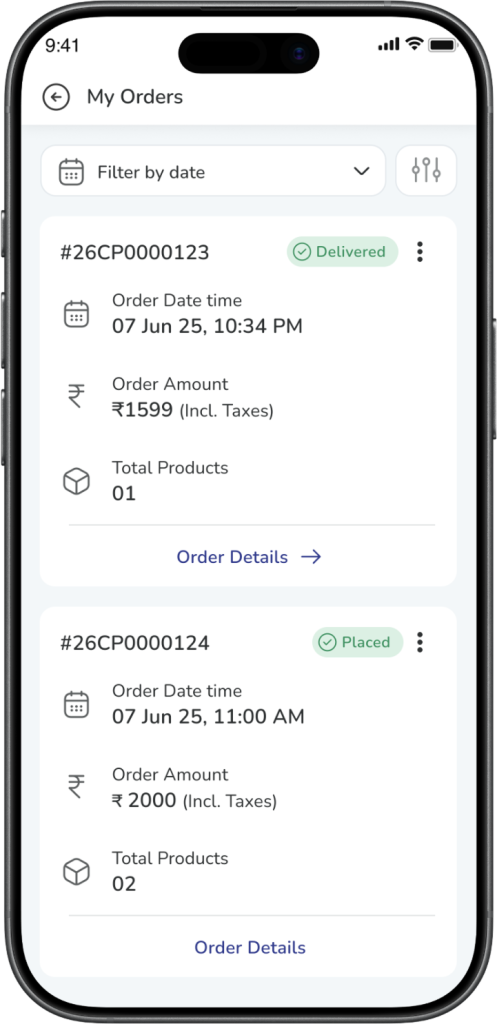
Step: Open Orders
To check your placed orders, you can use either of the below paths:
- More → Store → Orders
- or directly from the Store landing page → Orders
Expected Result: You can see the list of orders placed through the Store Module
Frequently Asked Questions (FAQs)
You can open the Store Module by going to More → Store → All Products.
The Store Module is available for parents.
You can buy available products such as Uniforms, School Textbooks, Centre of Excellence, and other available product categories listed by your School.
Open All Products, go to the Uniforms section, select the product, choose size and quantity, add it to the cart, and complete the payment.
Open All Products, select the required program or category, and use Buy Now or Add to Cart to proceed with the purchase.
Yes. While checking out uniform products from the cart, you can review the selected address, change it, or add a new one.
You can check your orders by going to More → Store → Orders OR directly from the Store landing page → Orders
Go to More → Store → Orders, open the required order, tap the three dots, and download the available invoice / receipt.
Once the payment is completed successfully, your order is placed successfully and becomes visible in the Orders section.
