
Overview
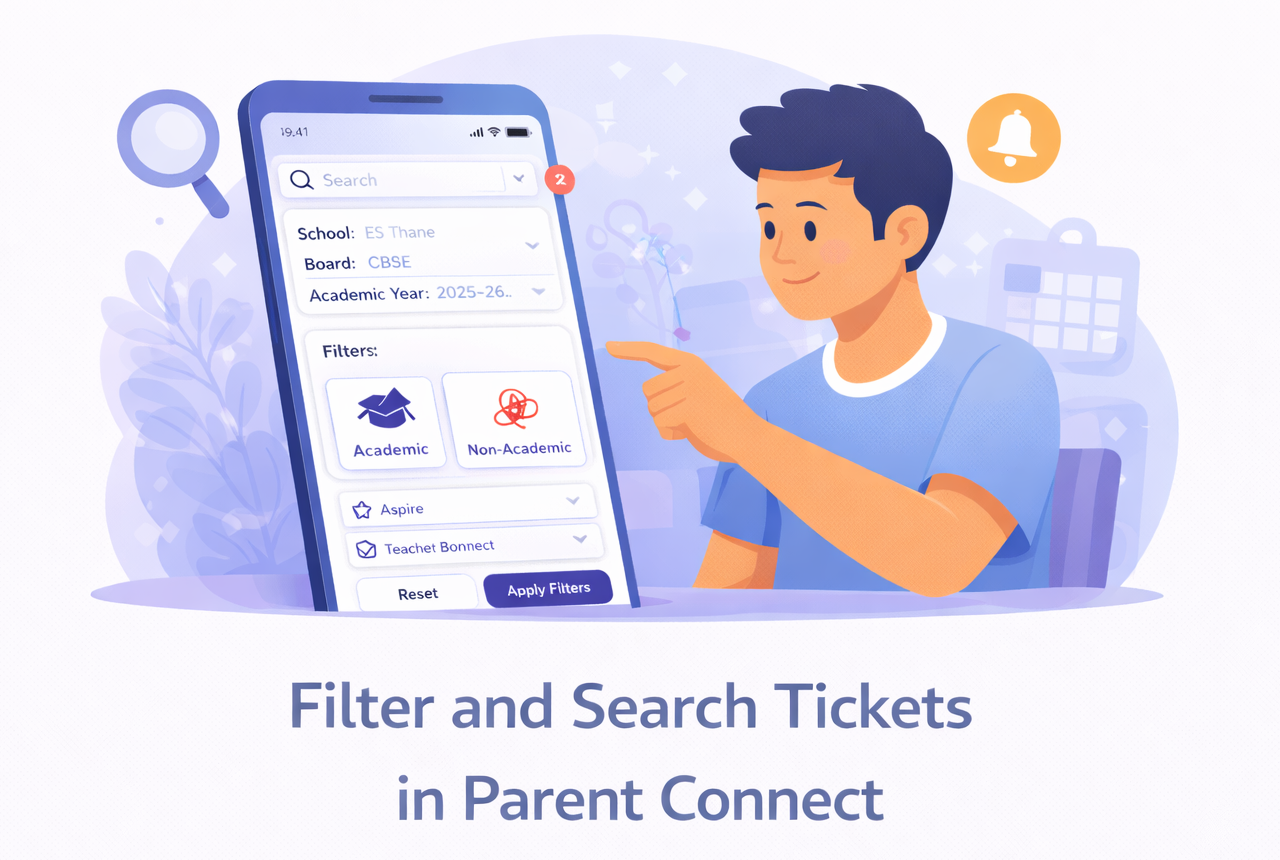
This guide explains how staff can use search and filters in Parent Connect to quickly find the right tickets.
What You’ll Learn
- How to search for tickets in Parent Connect
- How to apply filters to narrow ticket results
- How to reset filters and return to the full ticket list
Who Can Use This
Applicable Role:
- Staff mapped in Parent Connect
Before You Begin
- You must be logged in to the LMS app with a valid staff account
- You must have access to Parent Connect
Steps to Filter and Search Tickets
Step 1: Open Parent Connect
Go to: More → Parent Connect
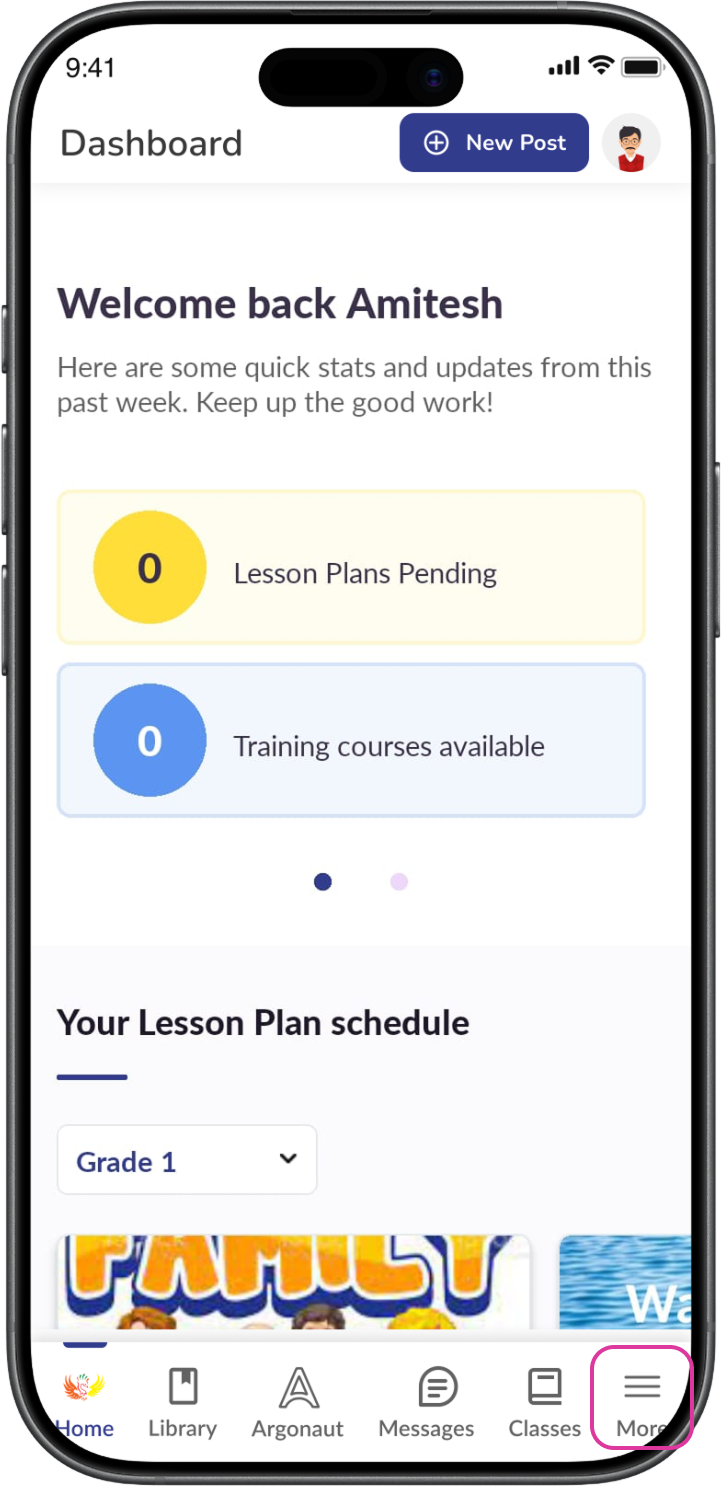
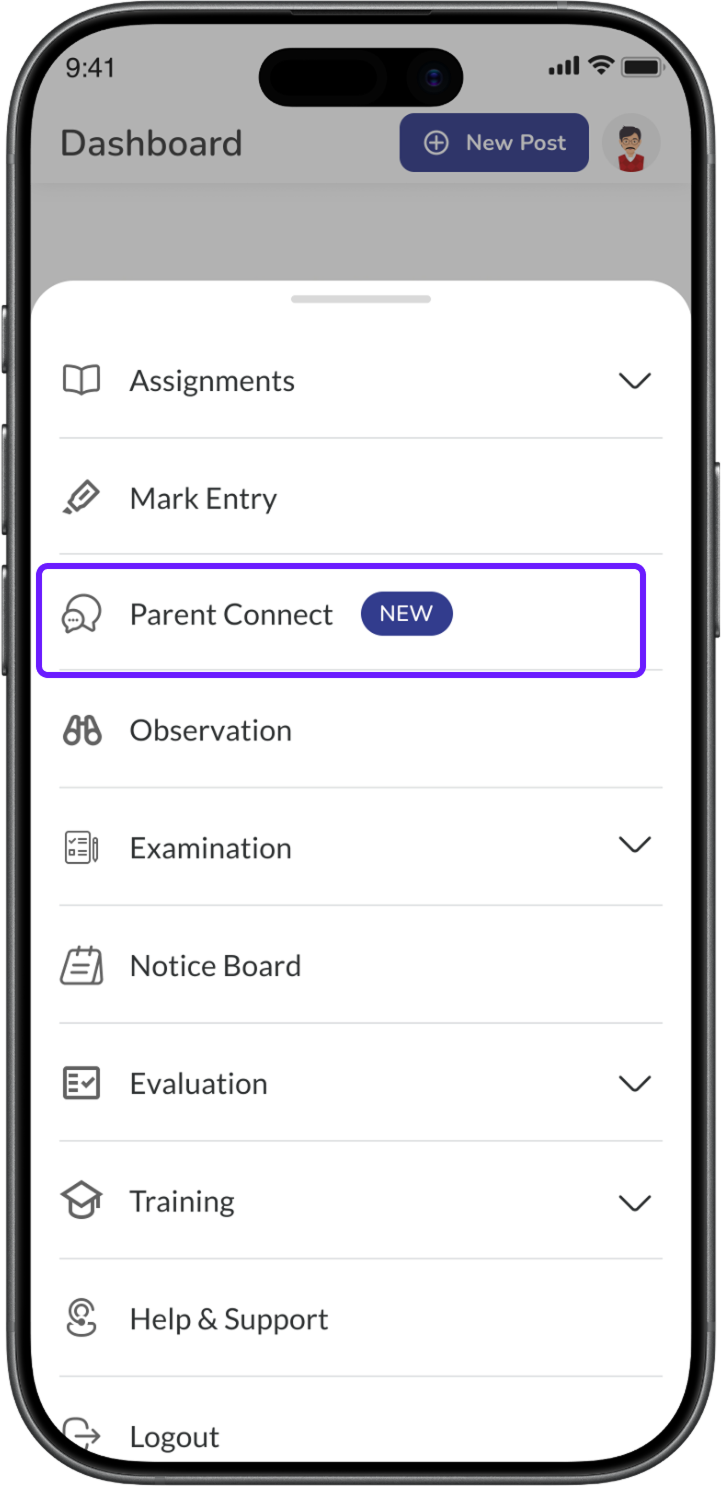
✅ Expected Result: The Parent Connect tickets screen opens.
Step 2: Use the search bar
At the top of the Parent Connect screen, tap the search bar.
You can search using details such as:
- Ticket ID
- Parent name
- Assignee name
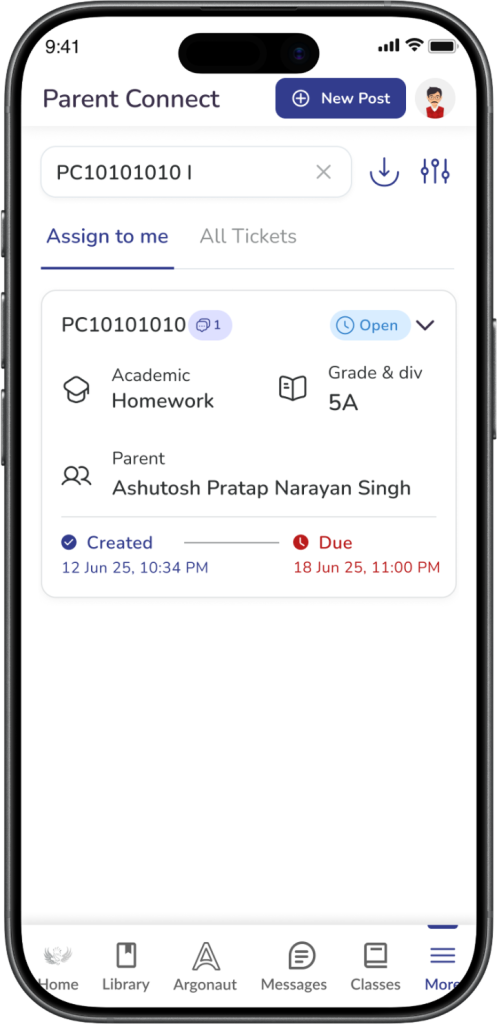
✅ Expected Result: The ticket list updates to show matching results.
ℹ️ Important: Use search when you already know the ticket ID or want to quickly find a specific parent or ticket.
Step 3: Open the filter panel
Tap the Filter icon on the Parent Connect screen.
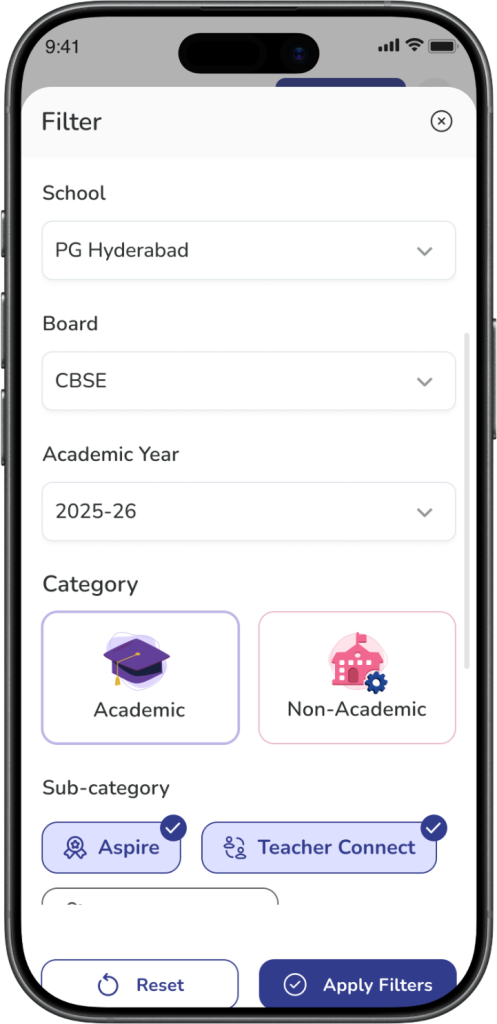
✅ Expected Result: The Filter panel opens.
Step 4: Select basic filters
You can filter tickets using the available fields, such as:
- School
- Board
- Academic Year
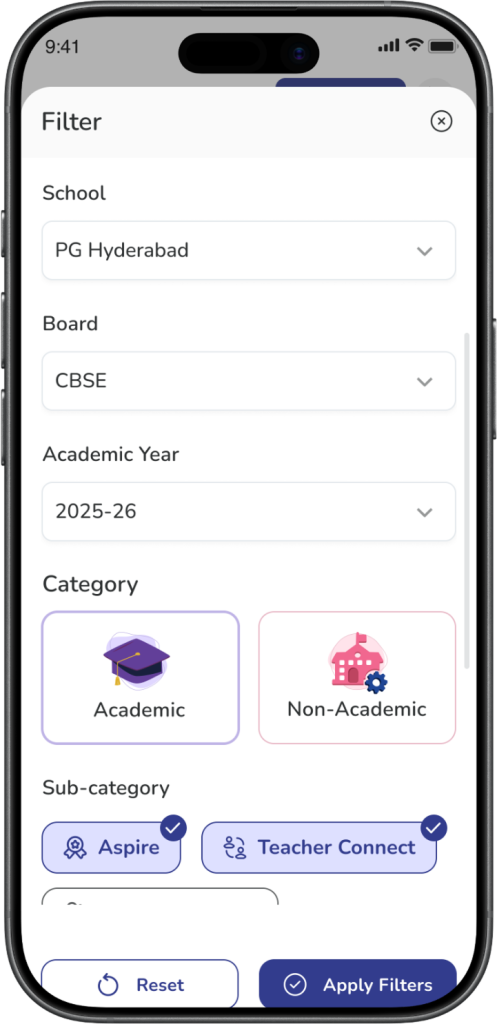
Select the values that match the tickets you want to view.
✅ Expected Result: Your selected values are added to the filter panel.
Step 5: Select a category
Choose the ticket category you want to view:
- Academic
- Non-Academic
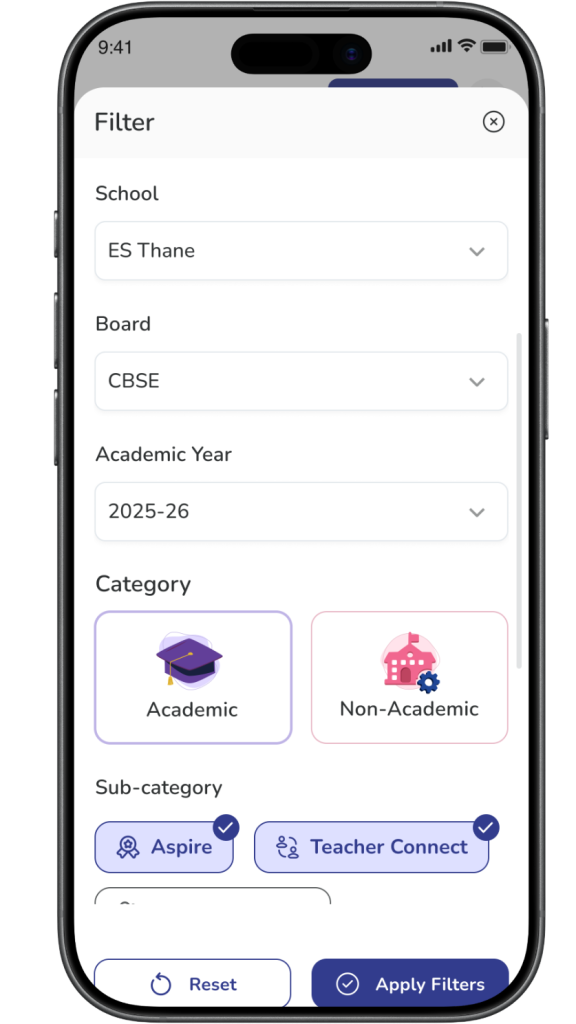
✅ Expected Result: The selected category is highlighted.
Step 6: Select one or more sub-categories
Under Sub-category, choose the required option or options.
Examples may include:
- Aspire
- Teacher Connect
- Student Behavior
✅ Expected Result: The selected sub-categories are highlighted.
ℹ️ Important: You may be able to select more than one sub-category, depending on the filter design.
Step 7: Apply the filters
Tap Apply Filters.
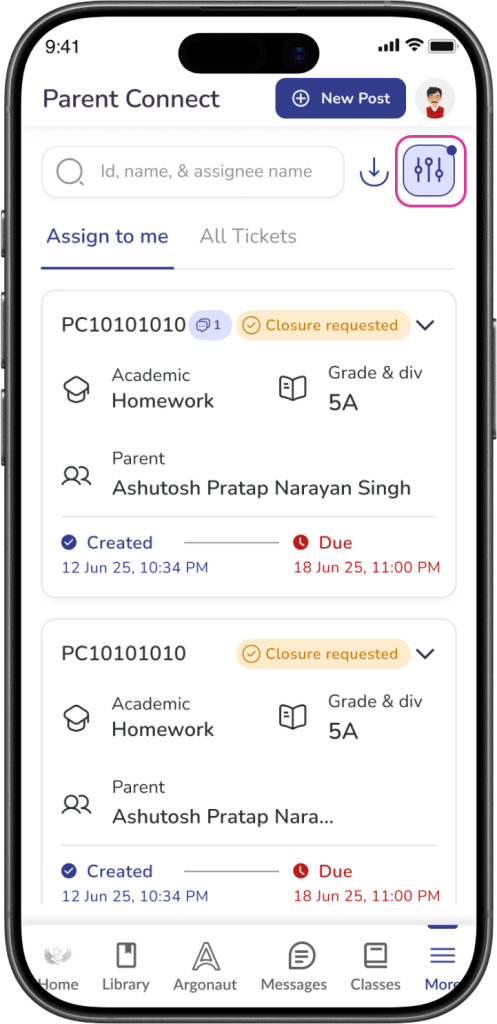
✅ Expected Result: The ticket list refreshes and shows only tickets that match the selected filters.
Step 8: Reset filters if needed
If you want to remove the selected filters, tap Reset.
✅ Expected Result: All selected filters are cleared, and the full ticket list is shown again.
Important Information
ℹ️ Important: Filters help you narrow down a large ticket list and find the right tickets faster.
ℹ️ Important: Search and filters can be used together for more accurate results.
✅ Tip: Use School, Board, and Academic Year first, then apply Category and Sub-category filters for better results.
Frequently Asked Questions
You can search using details such as ticket ID, parent name, or assignee name.
Use filters when you want to narrow down a group of tickets, such as all Academic tickets for a specific school or year. Use search when you want to find one specific ticket or person quickly.
Yes. You can combine multiple filters such as School, Board, Academic Year, Category, and Sub-category to refine the ticket list.
Yes, you can select more than on sub-category to filter out specific tickets.
This may happen if no tickets match the selected filters. Try changing or clearing some filters and apply them again.
Yes. You can first apply filters and then use the search bar to narrow the results even more.
