
Overview
This guide explains how staff can open Parent Connect, view their assigned tickets, and understand the ticket list shown in the app.
What You’ll Learn
- How to open Parent Connect
- How to view tickets under Assign to me and All Tickets
- What information is shown on each ticket card
Who Can Use This
Applicable Role:
- Staff mapped in Parent Connect
Before You Begin
- You must be logged in to the LMS app with a valid staff account
- You must be mapped in Parent Connect as a ticket handler
Steps to View Assigned Tickets
Step 1: Open the LMS app
Log in to the LMS app using your staff credentials.
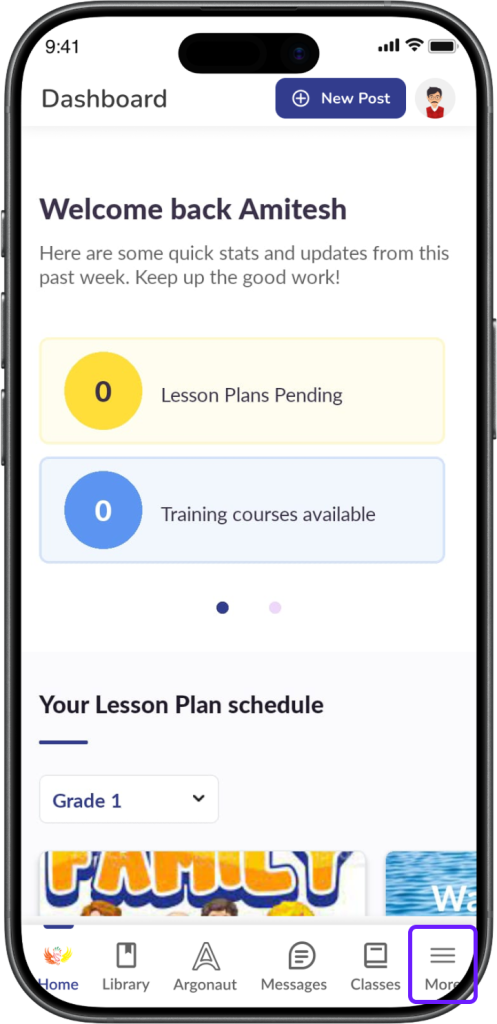
Step 2: Open the More menu
Tap More from the bottom navigation bar.
Step 3: Select Parent Connect
Tap Parent Connect from the menu.
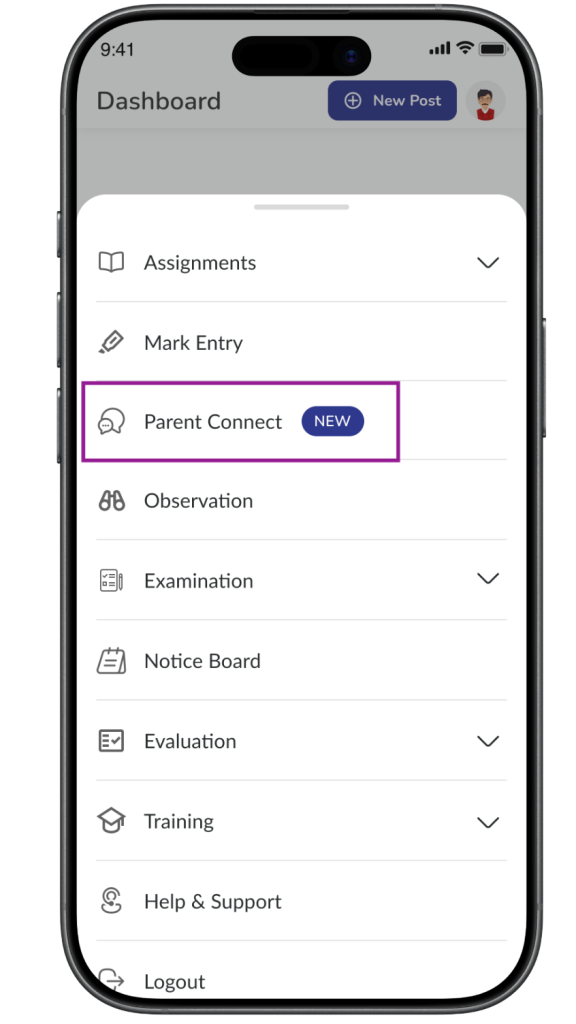
✅ Expected Result: The Parent Connect tickets screen opens.
Step 4: View tickets under Assign to me
By default, Parent Connect opens on the Assign to me tab.
This tab shows tickets that are currently assigned to you for action.
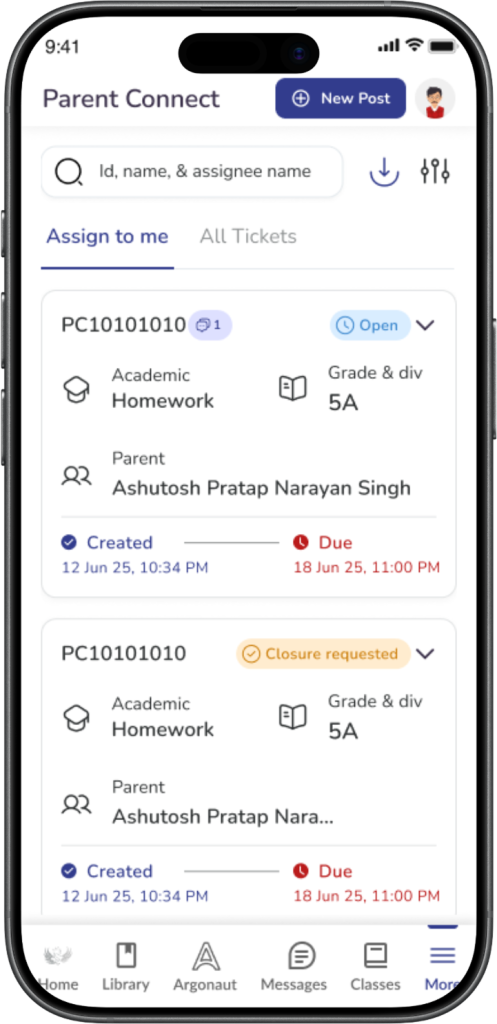
✅ Expected Result You can see all tickets that you are currently responsible for handling.
ℹ️ Important: Use this tab when you want to work only on tickets that need your action.
Step 5: View tickets under All Tickets
Tap the All Tickets tab to view a broader list of tickets available to you.
This tab may include:
- Tickets currently assigned to you
- Tickets previously assigned to you
- Tickets visible to you based on your role and mapping
✅ Expected Result You can see a wider list of tickets available for your reference.
ℹ️ Important: The tickets shown in All Tickets depend on your role, level, and Parent Connect mapping.
Step 6: Review the ticket card details
Each ticket card gives a quick summary of the ticket.
A ticket card may show:
- Ticket ID
- Category and Sub-category
- Parent name
- Grade & Division
- Status such as:
- Open
- Closure requested
- Escalated
- Closed
- Timeline details such as:
- Created
- Due
- Assigned level or current stage
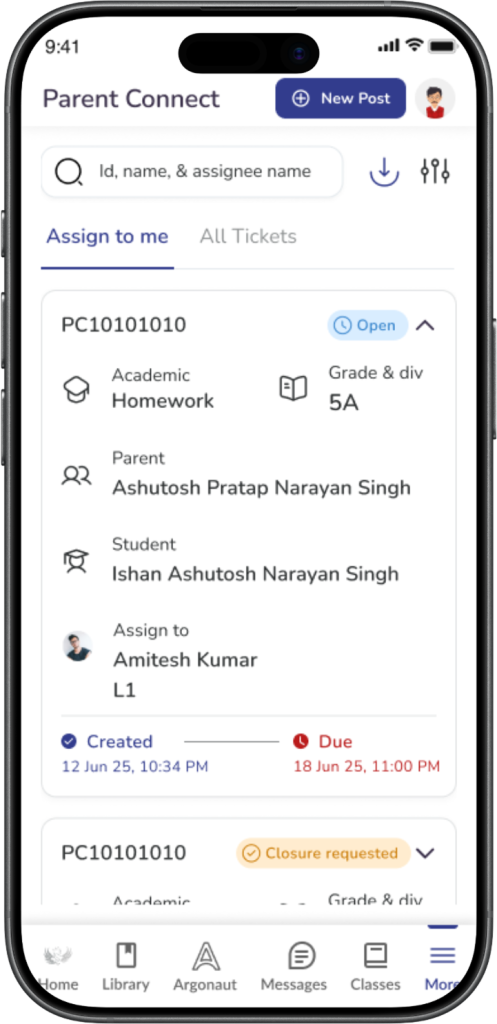
✅ Expected Result: You can quickly understand the ticket type, ticket status, and whether action may be required.
Step 7: Open a ticket
Tap any ticket card to open the ticket details page.
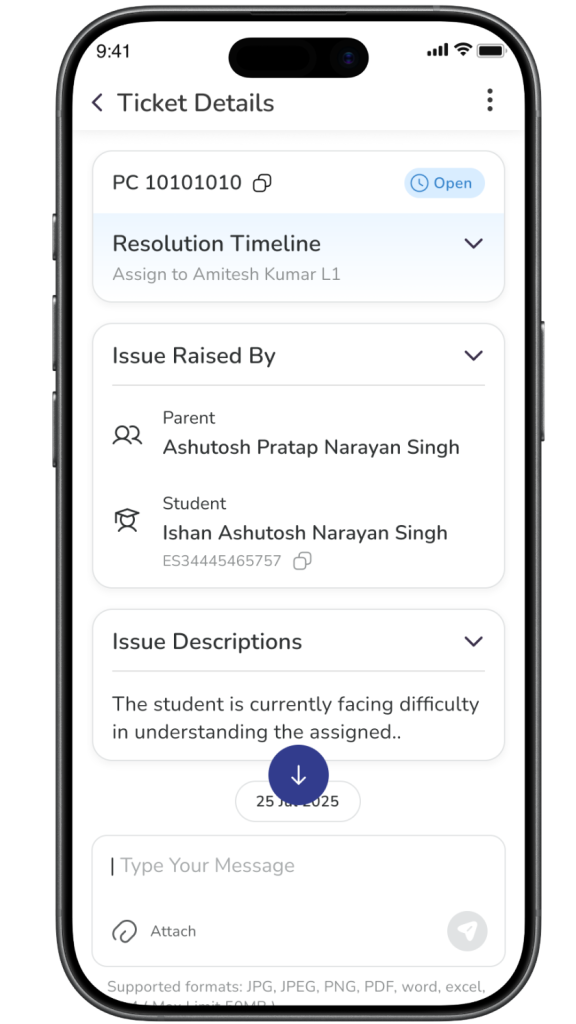
✅ Expected Result: The selected ticket opens and shows the full details.
Important Information
ℹ️ Important:
- Assign to me is the main working tab for tickets currently assigned to you.
- All Tickets is useful when you want to review other visible tickets based on your mapping and access.
- Ticket visibility may vary depending on whether you are L1, L2, or L3 staff.
Frequently Asked Questions
Assign to me shows tickets currently assigned to you for action.
All Tickets shows a broader list of tickets visible to you based on your role and mapping as well as tickets previously assigned to you.
This helps staff quickly access tickets that need their immediate attention.
A ticket card may show the ticket ID, category, sub-category, parent name, grade and division, status, and timeline details such as created date and due date.
This may happen if no tickets are currently assigned to you or if you are not mapped to any active Parent Connect category.
All Tickets may include other tickets visible to you based on your role, level, and Parent Connect mapping, not just the ones currently assigned to you.
No. Ticket visibility depends on the staff member’s level, mapping, and access in Parent Connect.
