

Managing school fees is streamlined through the LMS Parent App, providing a centralized location to track installments, view breakdowns, and complete secure payments for one or multiple children.
This guide explains how parents can view and pay their child’s school fees using the LMS Parent App.
Fee management is primarily a parent-facing feature. While staff can view records for administrative purposes, payment functionality is reserved for authorized Parent/Guardian accounts.
Easy Video Guide
Mobile App
Table of Content
- How to access Fees
- Select the Child
- View Fee Installments
- View Installment Breakdown
- Choose Payment Method
- Review the Final Payment Amount
- Pay Fees Using Grayquest
(If Available)
- Payment Confirmation
- View Transaction History
- View Transaction Details
- Download Payment Receipts
- View Fees from Previous Academic Years
- Important Information
- Need Help?
- User Guide
- Frequently Asked Questions (FAQs)
How to access Fees
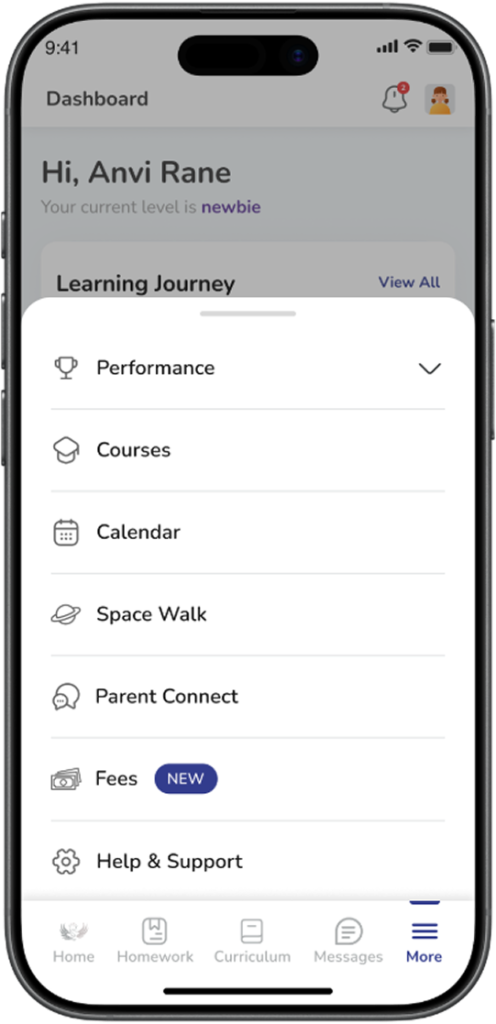
Steps to open the Fees page
- Tap More from the bottom navigation menu.
- Select Fees.
This will open the Fees page or screen.
Select the Child
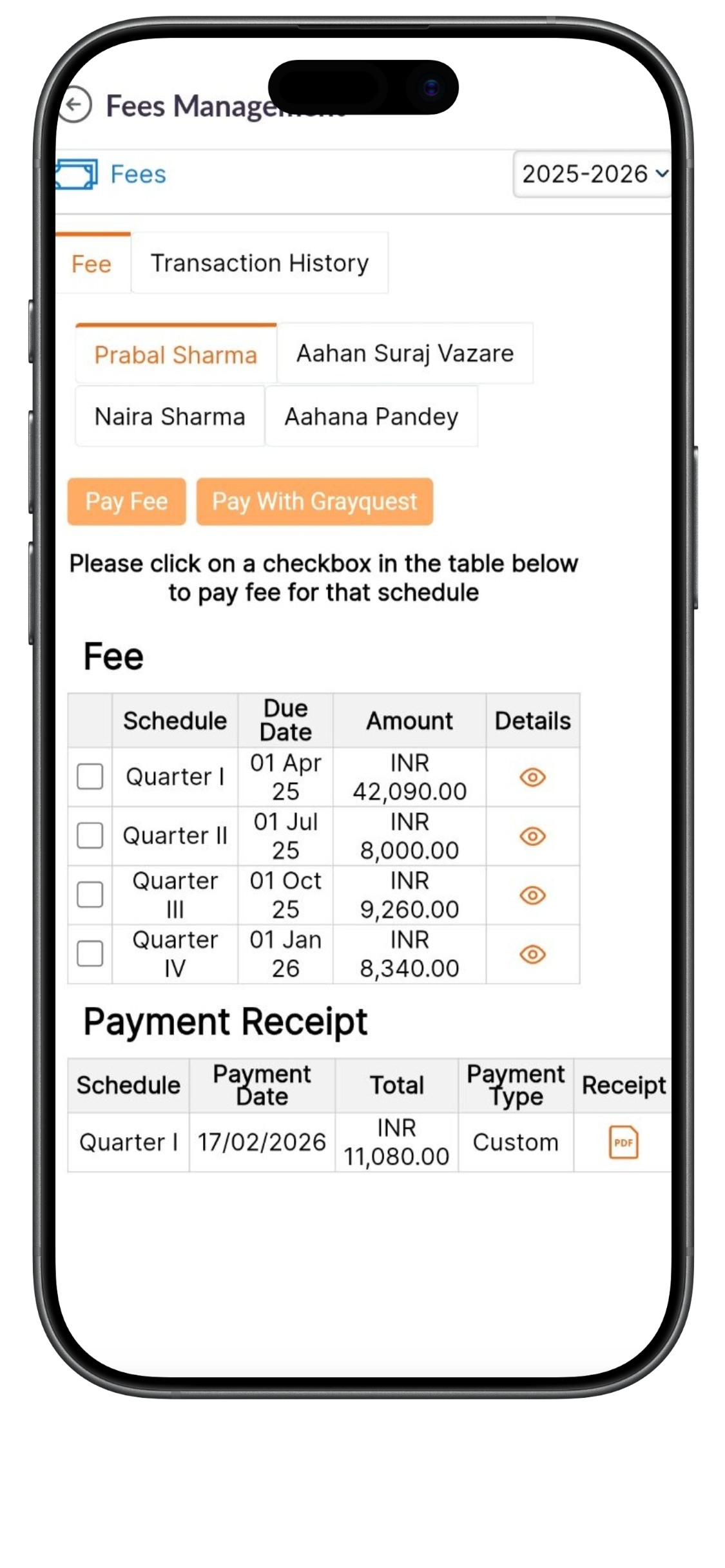
If a parent has more than one child linked to their account, the app will show multiple student names.
Default student view
The system automatically loads the fees for the child who was selected before opening the Fees module.
Parents can tap another student’s name to view the fees for that child.
View Fee Installments
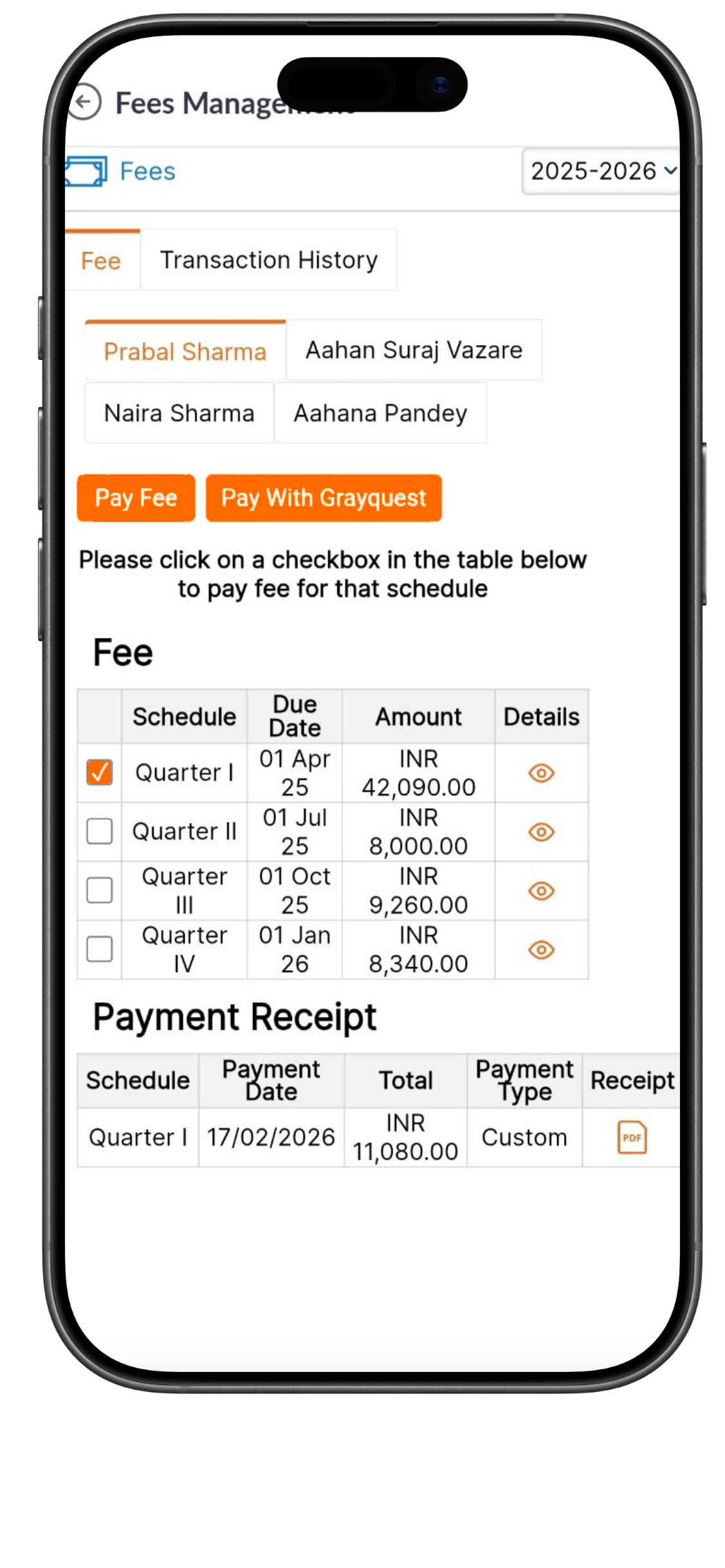
The Fees page shows a table with installment details.
Information shown in the installment table
Parents will see:
- Installment schedule (such as Quarter I, II, III, or IV)
- Due date
- Amount to be paid
- Option to view more details
Parents can select one or multiple installments before making a payment.
Parents can then choose to:
- Pay Fee with Payment Gateways
- Pay with Grayquest (if available)
Partial payments are not allowed. Each installment must be paid in full.
View Installment Breakdown
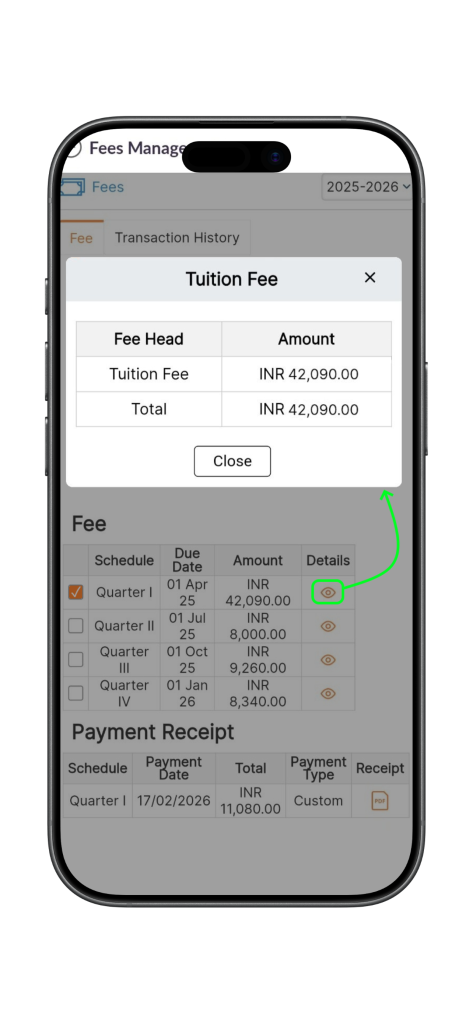
Parents can check what is included in an installment before paying.
How to view details
Tap the eye icon next to the installment.
The system will show:
- Fee category (such as tuition fee)
- Total amount for that installment
This helps parents review the amount before making a payment.
Parents can choose which installments they want to pay.
Selecting installments
- Tap the checkbox next to the installment.
- Select one or more installments.
Once selected, the payment options will become active.
Parents can then choose to:
- Pay Fee
- Pay with Grayquest (if available)
Choose Payment Method
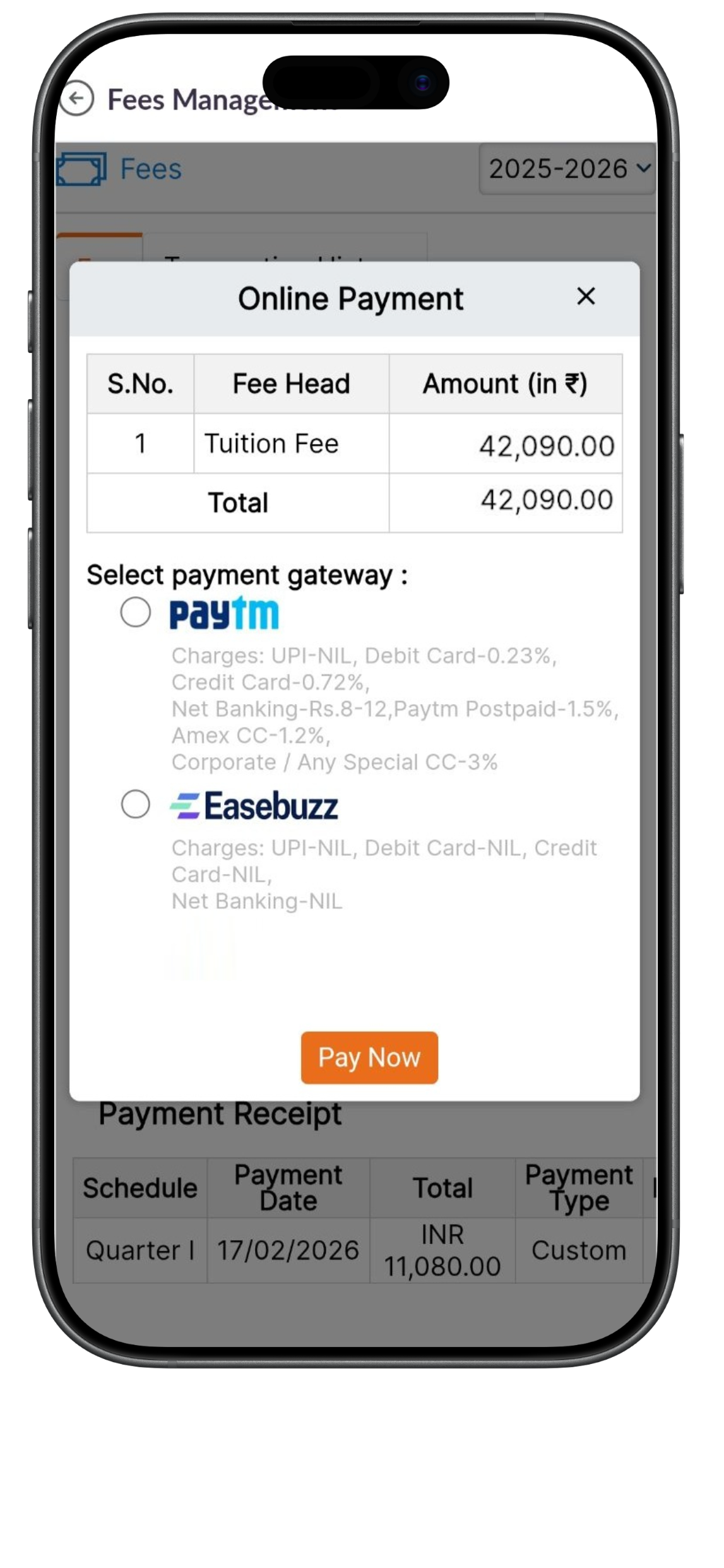
Parents can make payments using available payment gateways.
Steps to make a payment
- Tap Pay Fee.
- Choose the available payment gateway.
- Tap Pay Now to continue.
The system will redirect to the payment page.
Review the Final Payment Amount
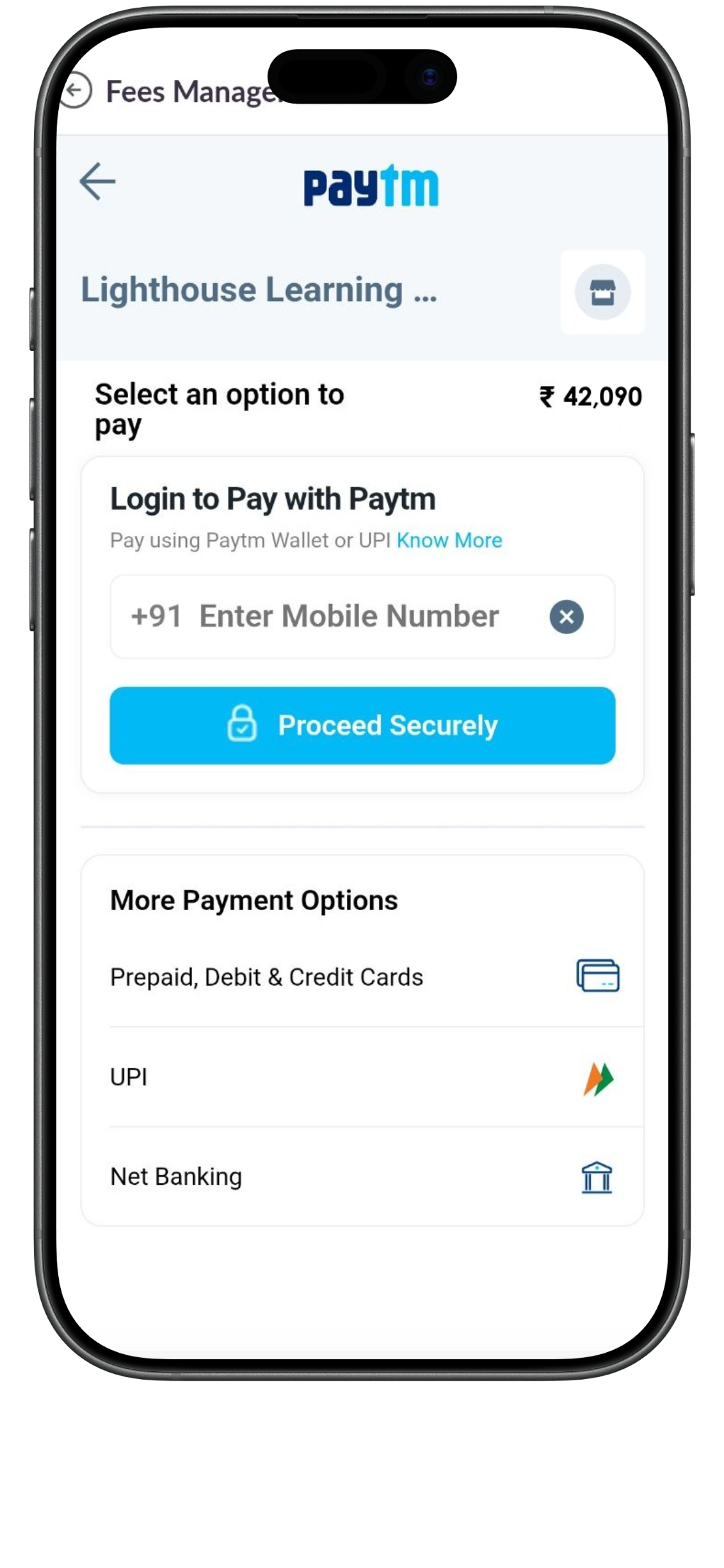
Before completing the payment, parents will see the final payment page.
Information shown on the payment page
The page shows:
- Total amount to be paid
- Any payment gateway charges
- Available payment methods
Parents can choose their preferred payment option, such as:
- UPI
- Debit or credit card
- Net banking
Important
Any additional gateway charges will be shown before the payment is completed.
Pay Fees Using Grayquest
(If Available)
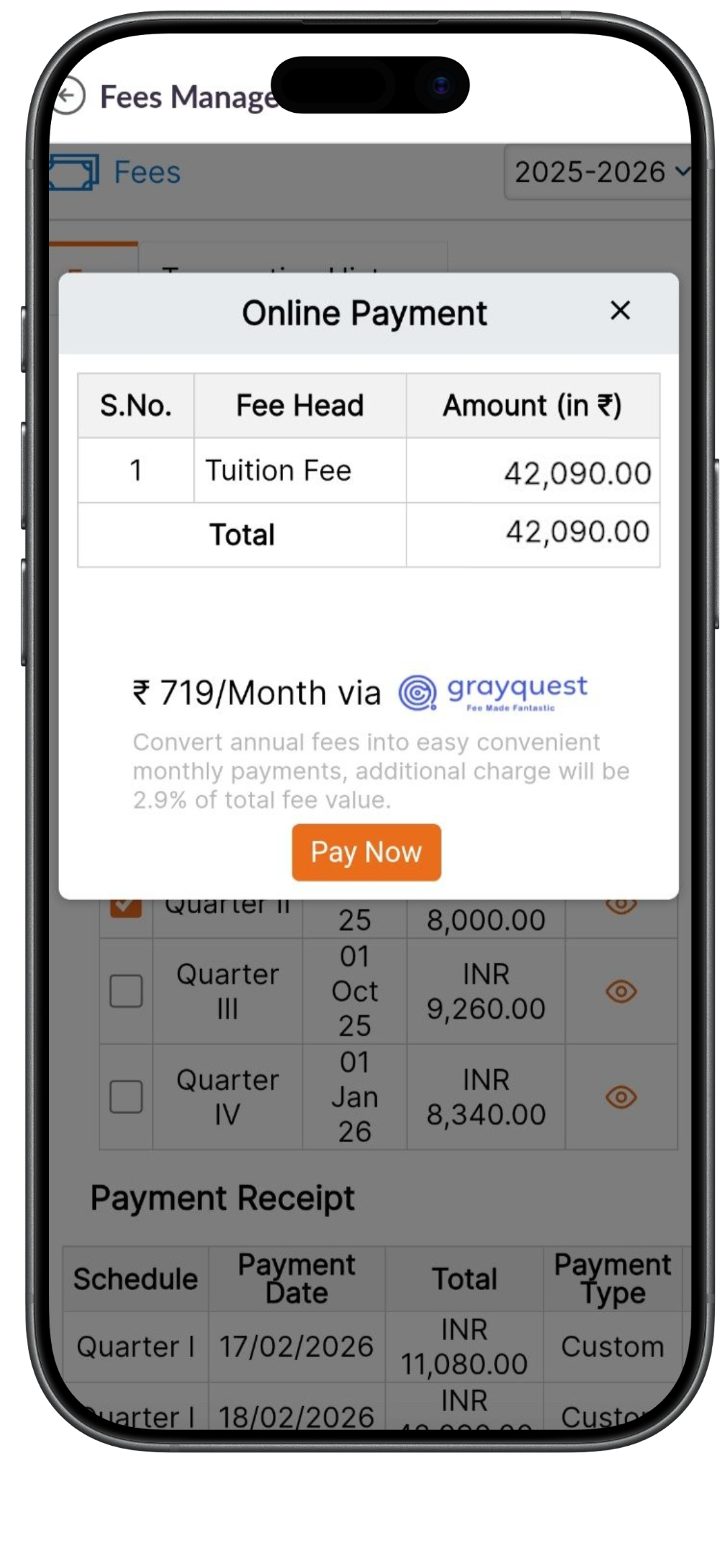
Some schools allow parents to pay fees using Grayquest.
Grayquest allows parents to convert their fees into smaller monthly payments.
Important information about Grayquest
- Available only for applicable installments
- Minimum eligibility criteria may apply
- Additional charges may apply
Parents must complete the Grayquest application process to continue.
Payment Confirmation
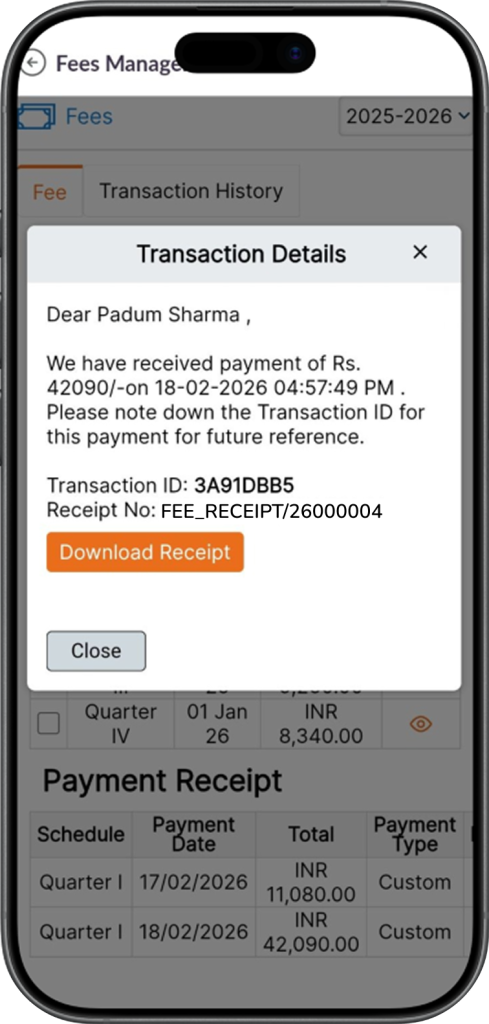
After a successful payment, the system will show a confirmation screen.
Information shown after payment
Parents will see:
- Transaction ID
- Payment confirmation message
- Option to download the payment receipt
The receipt can be downloaded immediately or later from the receipt section.
View Transaction History
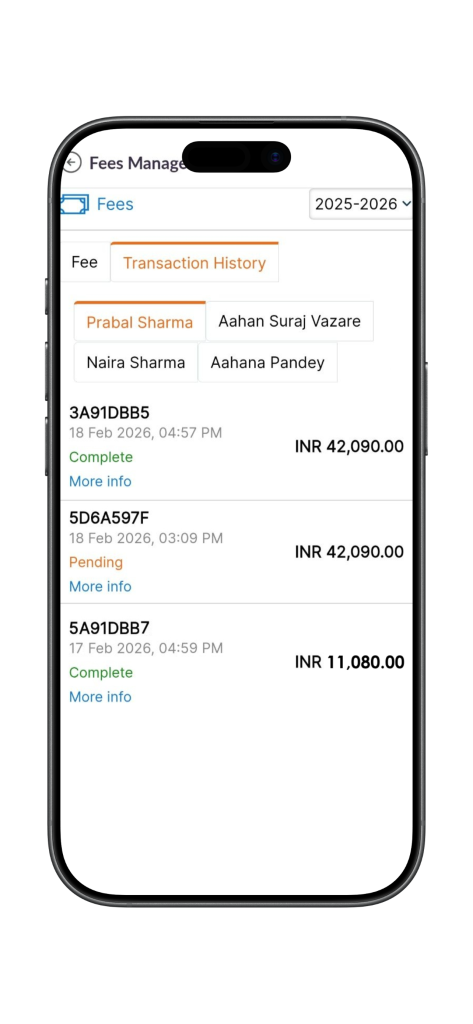
Parents can review all payment records in the Transaction History tab.
Information shown in transaction history
Parents can see:
- Payment date
- Amount paid
- Payment status
- Transaction details
Payment status types
The system may show:
- Complete – Payment successful
- Pending – Payment is being processed
- Failed – Payment did not go through
View Transaction Details
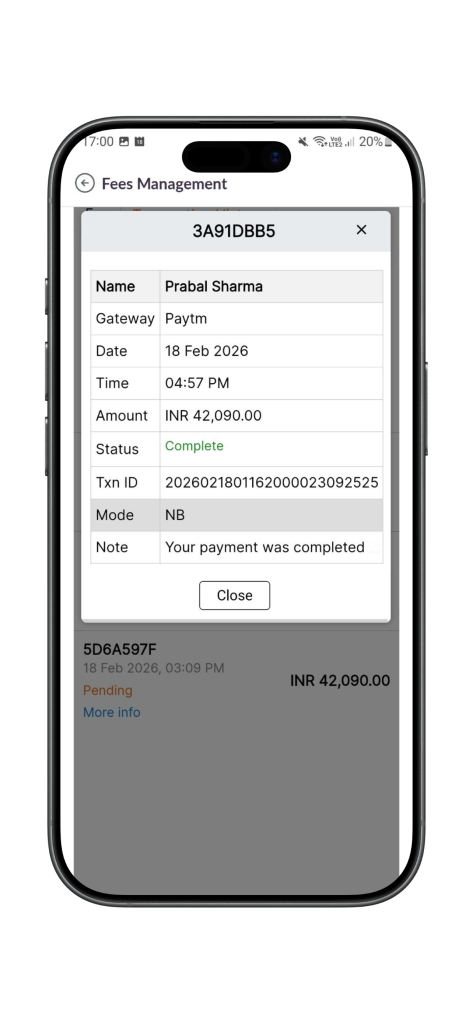
Parents can view more information about a payment.
How to view details
Tap More Info next to the transaction.
The system will show:
- Transaction ID
- Payment gateway used
- Date and time
- Payment mode
- Status of the transaction
If payment shows pending
Sometimes the payment gateway may take time to update the final status.
Parents should wait 24 to 72 hours before trying to make another payment.
Download Payment Receipts
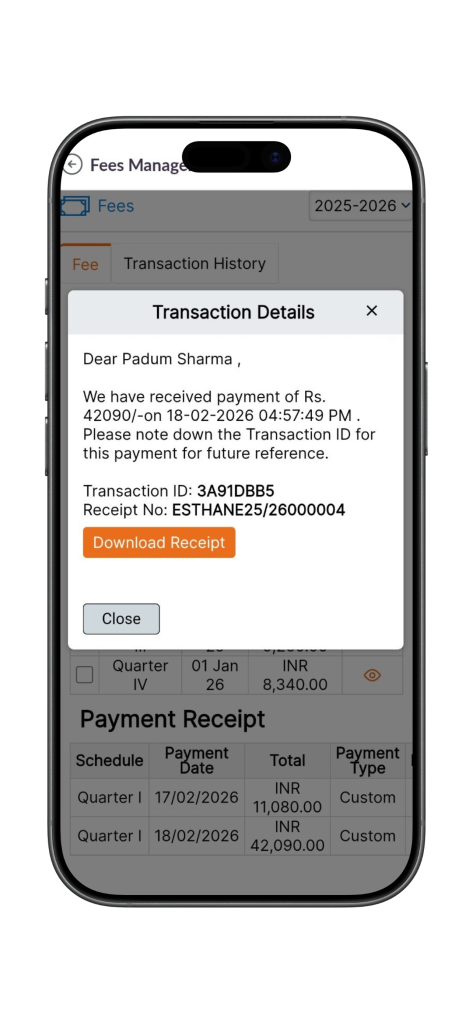
Parents can download receipts for completed payments.
Where to find receipts
Receipts are available:
- Immediately after payment
- In the Payment Receipt section on the Fees page
This allows parents to keep a record of all payments.
View Fees from Previous Academic Years
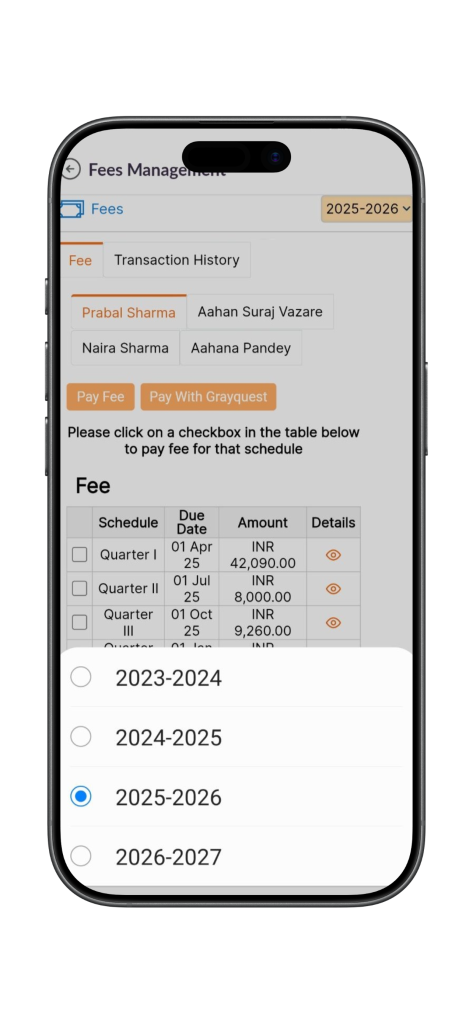
Parents can review fee records from earlier academic years.
Change the academic year
Tap the Academic Year dropdown at the top of the Fees page.
Select the year you want to review.
The system will load fee details for that academic year.
Important Information
- Fees must be paid in full for each installment.
- Multiple installments can be paid together in one transaction.
- Payment gateway charges may apply depending on the payment method.
- If a payment shows Pending, wait 24 to 72 hours for the status to update.
- Fee records are maintained by the school.
Need Help?
If you have questions about your child’s fees, please contact the school.
For fee related questions
Contact:
- School Accounts Office
- School Administration Office
User Guide
Frequently Asked Questions (FAQs)
Yes. You can select all available installments in the table and pay them in a single transaction via the Pay Fee button.
The final amount may include “Payment Gateway Charges” (convenience fees) applied by the service provider depending on your chosen payment method (e.g., specific credit cards).
Grayquest is a third-party service that allows you to pay school fees in easy monthly installments. It is optional and subject to eligibility and additional terms.
Tap the Academic Year dropdown at the top of the Fees page, select the previous year, and navigate to the Payment Receipt section to download older records.
Post first successful payment, system will not allow you to do the duplicate payment. If because of some reason you made same payment twice please contact the School Accounts Office directly with both Transaction IDs to initiate a refund or adjustment. You can raise a support ticket using Parent Connect feature as well.
