
Attendance Management involves the oversight of school-wide data, the generation of reports, and the ability to perform administrative corrections to historical attendance records.
How to Manage and Audit Attendance
- Access Admin Reports: Navigate to School Management > Attendance Reports via the web portal.
- Review the Attendance Summary:
- View school-wide percentages for the day, week, or month.
- Identify classes that have Pending Attendance (where the teacher hasn’t submitted yet).
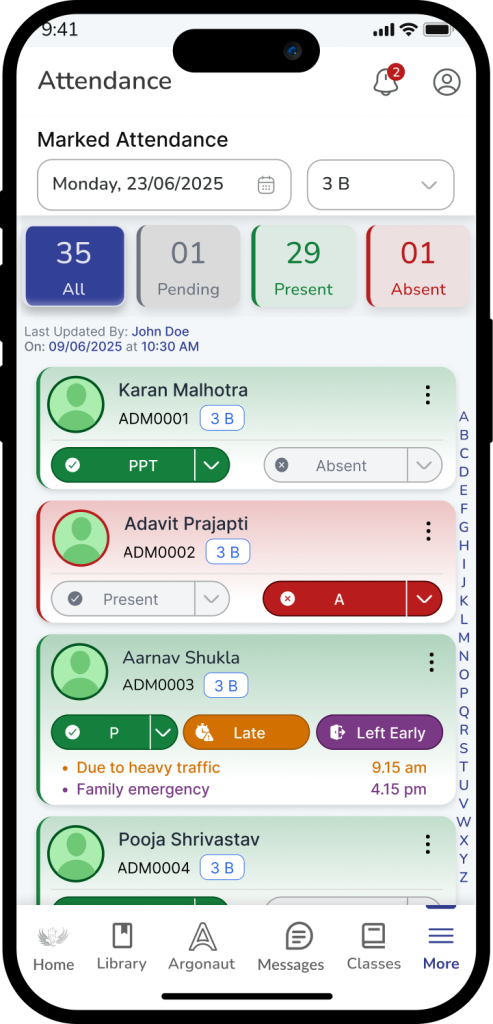
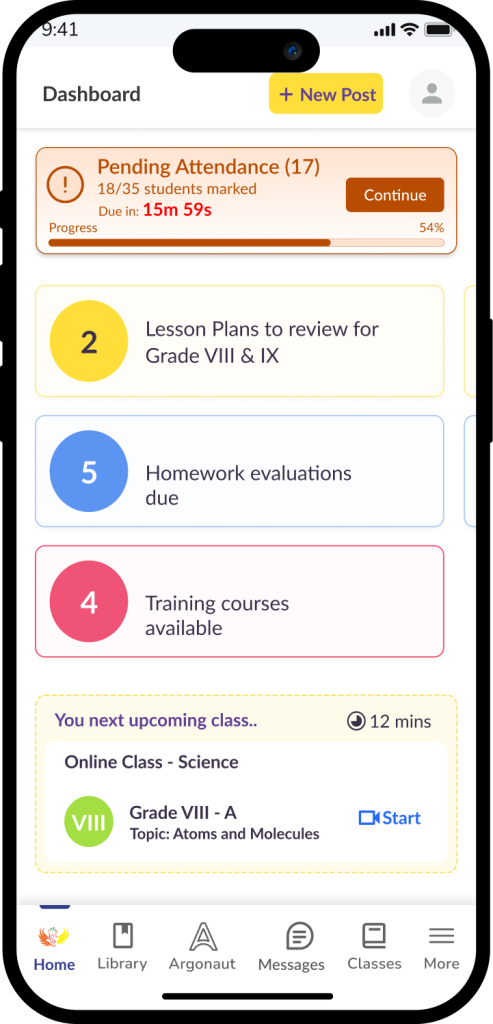
- Perform Administrative Overrides:
- If a teacher makes an error on a past date, admins can search for the student, select the specific date, and click Edit Record.
- Select the corrected status and add an Admin Note explaining the change for audit purposes.
- Export Data: Use the Export button to download attendance sheets in CSV or PDF format for official government or board reporting.
Note:
- Audit Logs: All changes made by an Admin to a Teacher’s original entry are tracked in the system audit log.
- Lock Periods: Attendance records for previous academic terms may be “locked” and require Super Admin permission to modify.
Frequently Asked Questions (FAQs)
On the Attendance Management Dashboard, look for the “Pending Submissions” or “Teacher Compliance” report. This will list all classes that have not yet hit the “Save” button for the current date.
Yes. Admins have “Override” permissions. You can navigate to the specific class and date, edit the student’s status, and save it. The system will log that an Admin performed this change.
Yes. Go to the Analytics/Reports section and select the “Monthly Summary Report.” You can filter this by grade, board, or the entire institution to see aggregate percentage trends.
This depends on your school’s configuration. In the Settings menu, you can define if “Late” counts as a full day of presence, a half-day, or simply as “Present with Remarks.”
Absolutely. Every report view has an Export button that allows you to download the data in CSV (Excel) or PDF formats.
Typically, no. Notes added in the Management module are intended for internal administrative tracking and audit trails, while “Status” is the primary information shared with parents.
The system uses “Last-In Wins” logic, but as an Admin, your web-based portal usually has higher priority. We recommend that admins only edit records after the morning marking window has closed.
Yes. Most LMS configurations allow for “Attendance Threshold Alerts.” You can set these up in the Notification Settings to flag chronic absenteeism to the Principal or Counselor.
