

Overview
This guide explains how parents can raise a new school query using Parent Connect in the LMS app.
What You’ll Learn
- How to open Parent Connect
- How to select a category and sub-category
- How to add a description and attachment
- How to submit a new query
Who Can Use This
Applicable Role:
- Parent
Prerequisites/Before you begin
- You must be logged in to the LMS app as a Parent
- Your registered mobile number must be active for OTP login
Steps to Raise a New Query
Step 1: Open the LMS app
Log in to the LMS app using your registered mobile number and OTP.
Step 2: Open
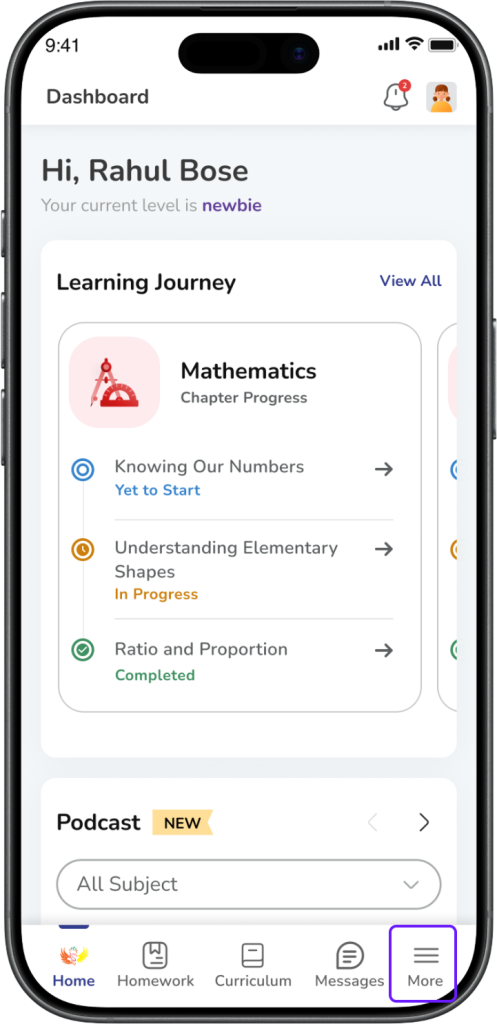
More
Tap More from the bottom navigation bar.
Step 3: Select
Parent Connect
Tap Parent Connect from the menu.
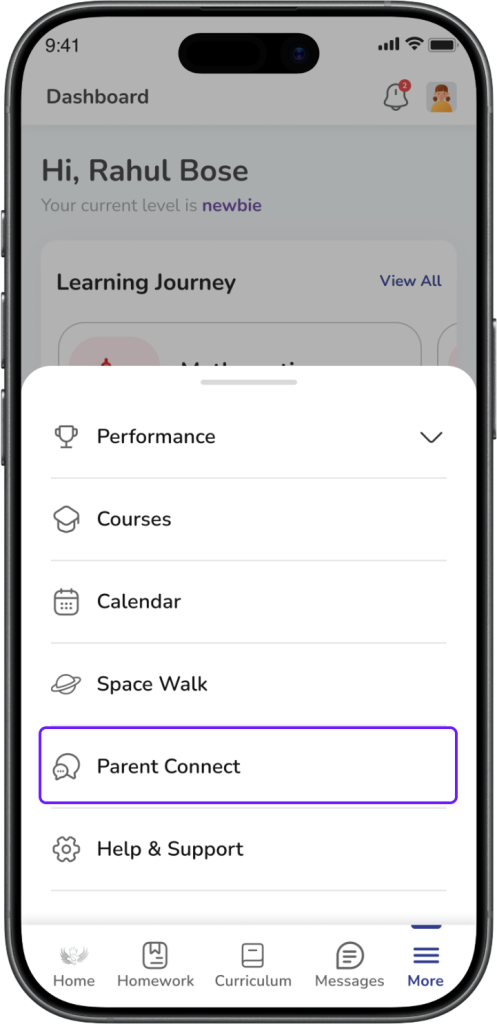
Expected Result: The Parent Connect screen opens.
Step 4: Start a new query
Do one of the following:
- Tap Raise a New Query if you do not have any tickets yet
- Tap the + button if you already have tickets
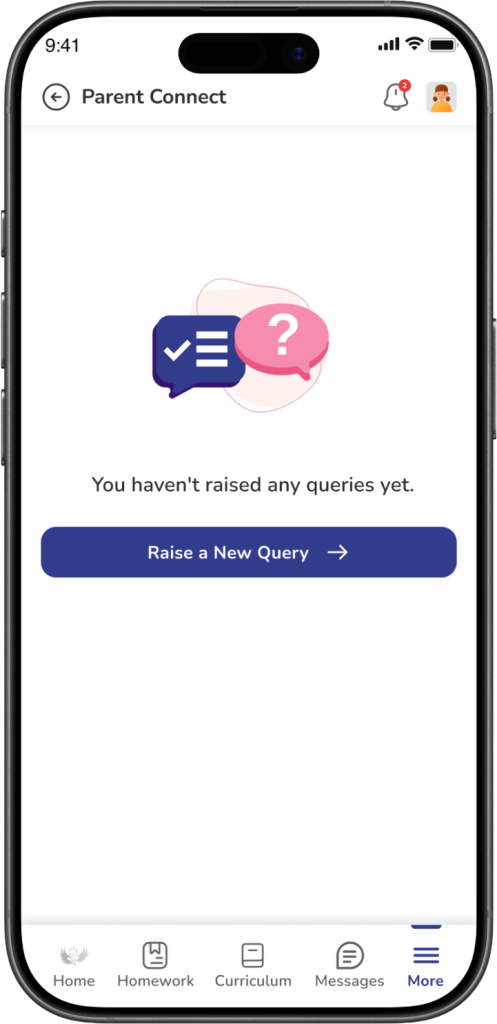
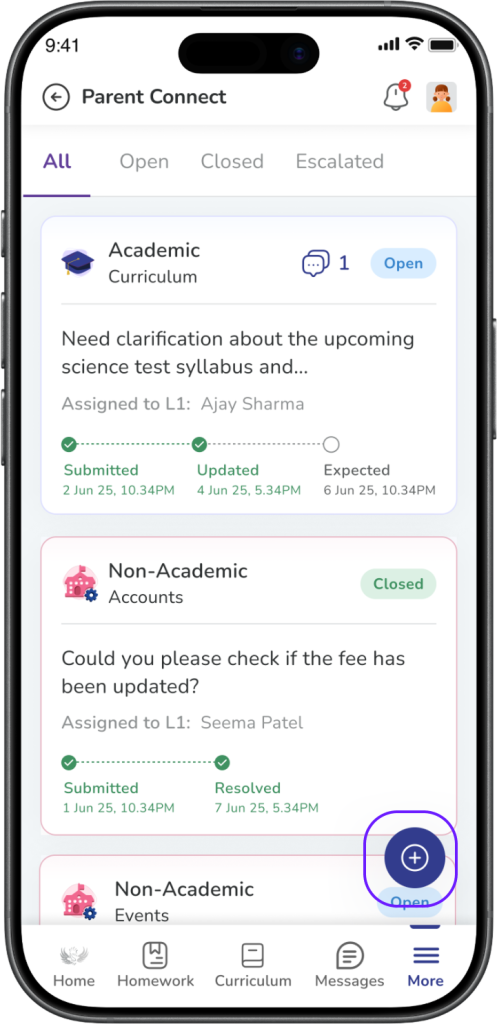
Expected Result: The Raise a New Query screen opens.
Step 5: Select a category
Choose the category that matches your query:
- Academic
- Non-Academic
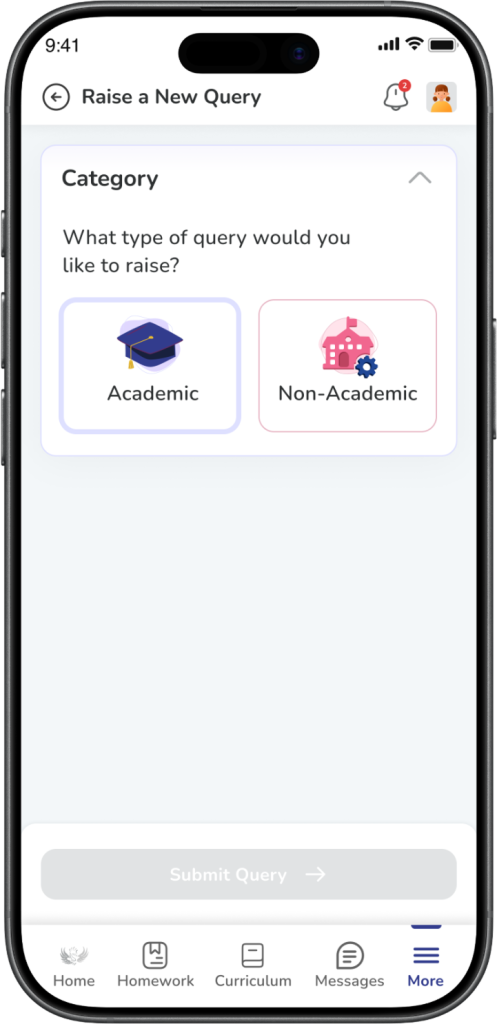
Expected Result: The selected category is highlighted, and the next section becomes available.
Step 6: Select a sub-category
Choose the sub-category that best matches your issue.
Examples may include:
- Aspire
- Student Behavior
- Curriculum
- Lumos
- Events
- Others
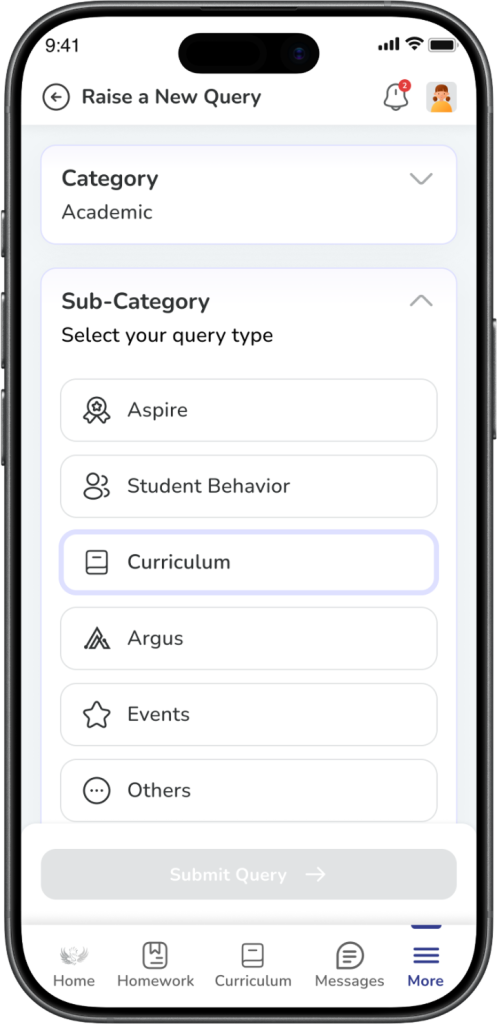
Expected Result: The selected sub-category is highlighted.
Important: Select the most relevant sub-category to help the school team route your query correctly.
Step 7: Enter your query details and add an attachment (optional)
In the Describe your query field, enter a clear explanation of your concern.
For example, include:
- What the issue is
- When it happened
- What support or clarification you need
If needed, tap Tap to upload files to add a supporting file.
Supported file formats may include: JPG, PNG, PDF.
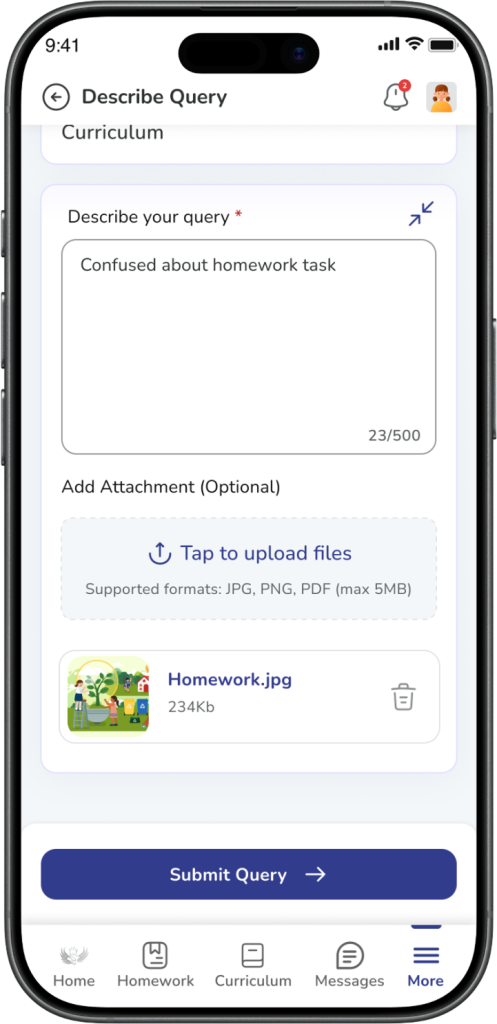
Expected Result: Your query details are added successfully, and the selected file appears below the upload area.
Warning: Make sure the file is clear and relevant to your query.
Step 8: Submit the query
Tap Submit Query.
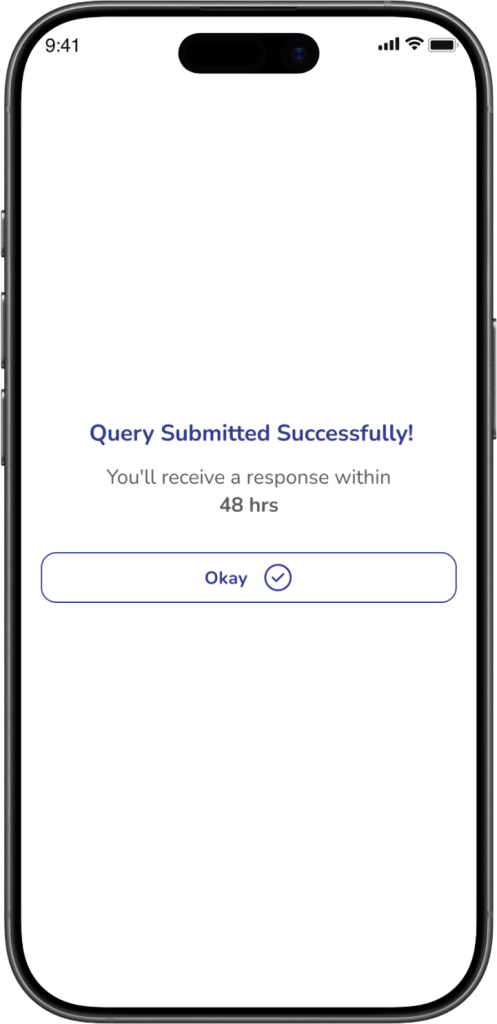
Expected Result: You see the message: Query Submitted Successfully!
Important: The success screen may also show the expected response timeline, such as within 48 hours.
Frequently Asked Questions (FAQs)
The Submit Query button is enabled only after you complete the required fields. Make sure you have selected a category, selected a sub-category, and entered your query in the description box.
Yes. You can raise multiple queries in Parent Connect whenever needed.
Yes. You can upload supported files such as JPG, PNG, and PDF while creating a query.
This may happen if the file type or file size is not supported. Try uploading a clear JPG, PNG, or PDF file within the allowed size limit (5MB)
Your query is sent to the relevant school staff to resolve. After that, you can track the ticket in Parent Connect and check for updates or replies.
This may happen if the feature is not loaded properly in your current app session. Try logging out and logging in again. If the issue continues, contact support.
Yes. Selecting the correct category and sub-category helps the system send your query to the right school staff and can speed up the response.
