

Overview
This guide explains how parents can view their tickets in Parent Connect, open ticket details, and reply to school staff using the chat section.
What You’ll Learn
- How to view all your tickets
- How to open ticket details
- How to use chat inside a ticket
- How to reply to school staff
Who Can Use This
Applicable Role:
- Parent
Prerequisites
- You must be logged in to the LMS app as a Parent
- You must have at least one query raised in Parent Connect
Steps to View and Reply to Tickets
Step 1: Open Parent Connect
Go to:
More → Parent Connect
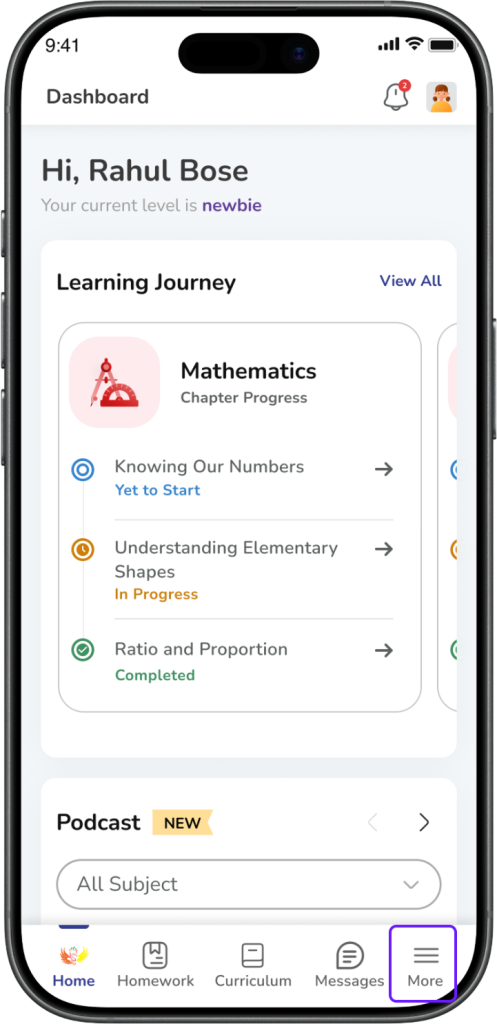
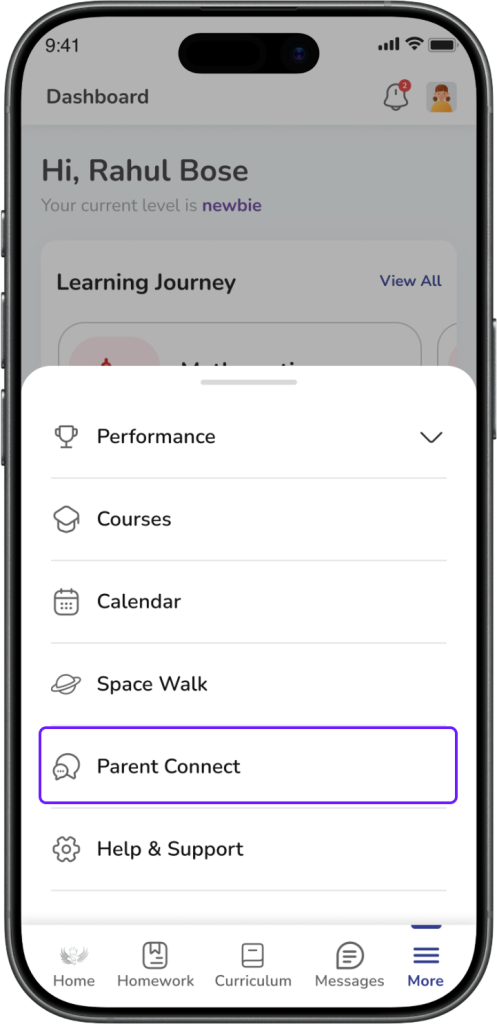
Expected Result: The Parent Connect tickets screen opens.
Step 2: View your tickets
On the Parent Connect screen, you can see your ticket list under tabs such as:
- All
- Open
- Closed
- Escalated
Each ticket card may show:
- Category and sub-category
- Short query preview
- Status
- Assigned staff level
- Timeline information
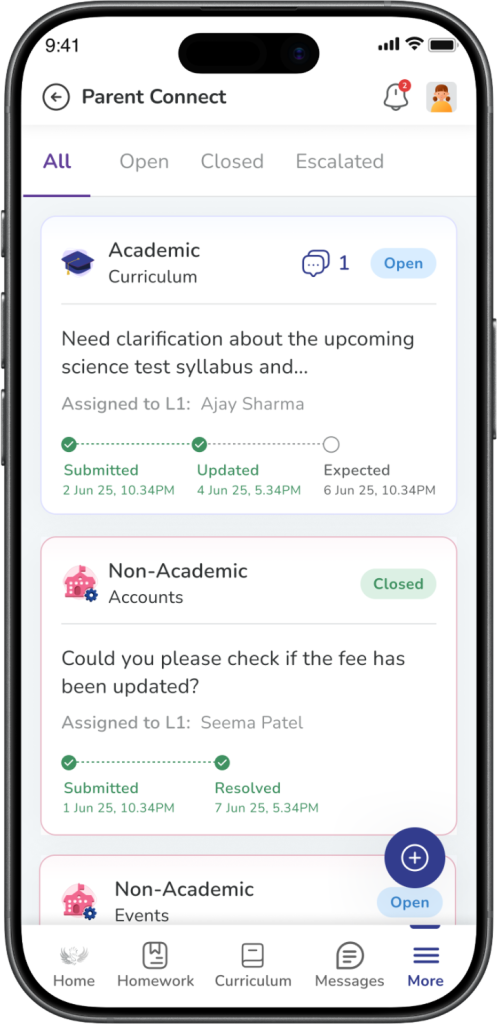
Expected Result: You can see your active and past tickets in one place.
Step 3: Open a ticket
Tap any ticket card to open the Query Details page.
Expected Result: The full ticket details page opens.
Step 4: Review the ticket details
On the Query Details screen, you may see:
- Category
- Sub-category
- Current status
- Query description
- Attachment
- Assigned staff details
- Ticket ID
- Timeline details such as:
- Submitted
- Updated
- Due
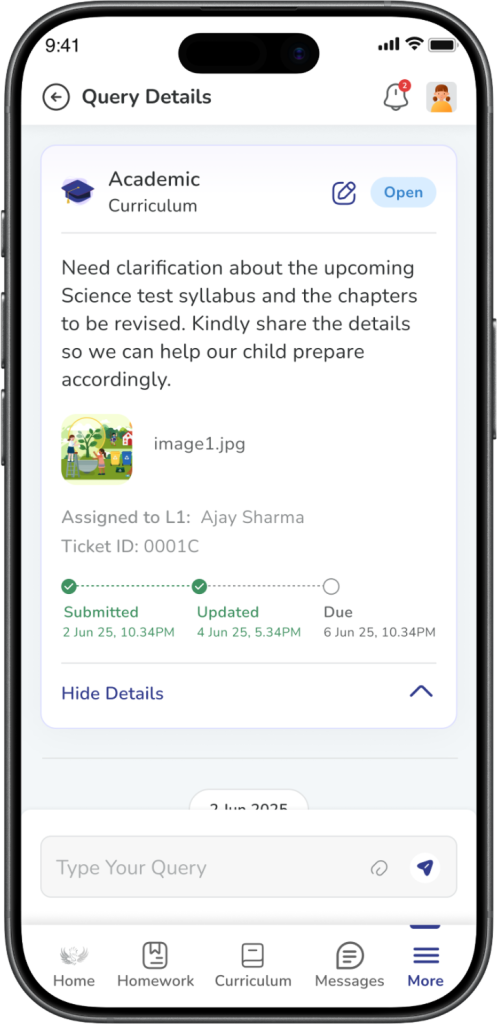
You can tap Show Details or Hide Details to expand or collapse the ticket details section.
Expected Result: You can view the full ticket information clearly.
Step 5: Use the chat box
Scroll to the chat section. In the Type Your Query box, enter your message.
Use the chat to:
- Reply to staff updates
- Ask follow-up questions
- Share extra details
- Continue the same conversation
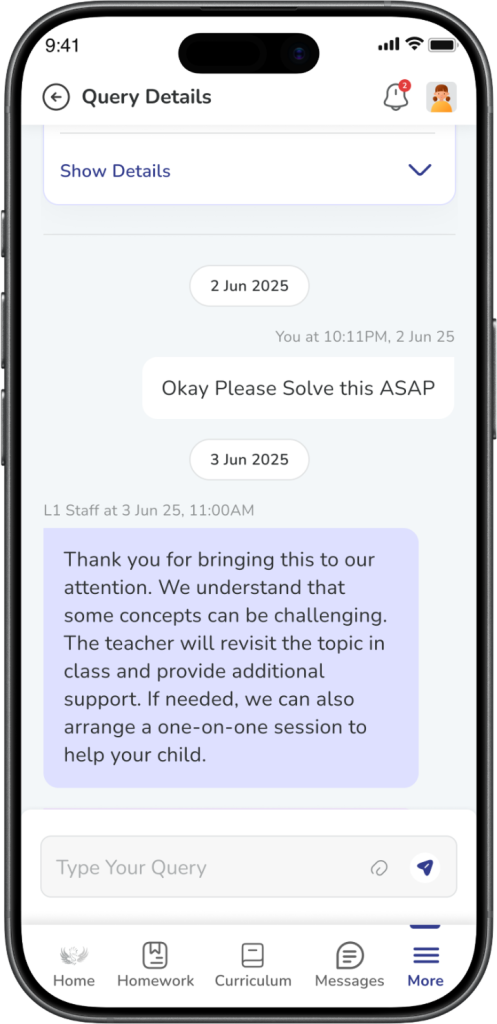
Expected Result: Your message is added to the ticket conversation.
Step 6: Send your message
Tap the send icon to reply.
Expected Result: Your response appears in the chat history.
Important: All messages stay inside the same ticket so you can view the complete conversation history anytime.
Frequently Asked Questions (FAQs)
You can see all your tickets inside Parent Connect. Open the More menu and tap Parent Connect to view your ticket list.
A ticket card may show the category, sub-category, short query preview, status, and important timeline details such as submitted, updated, or closed.
Tap any ticket card from the Parent Connect list. This opens the Query Details page where you can see the full ticket information.
Yes. You can use the chat box inside the ticket to reply, ask follow-up questions, or share more details.
Yes. All replies from you and the school staff stay inside the same ticket, so you can always view the full conversation history.
Yes. Parent Connect shows both your active and past tickets, so you can refer to older queries whenever needed.
Please check your internet connection and try again. If the issue continues, close and reopen the app, then retry.
